


Before a screen gets designed, someone has to decide what happens when the user taps the button on it. User flows are where that thinking becomes visible, cheap to change, and easy to argue about. Mapping the path before designing the screens is the difference between designing a product and decorating one.
In this glossary topic:

What is a user flow?
A user flow is a diagram that represents the path a user takes through a product to complete a specific task. It shows each screen or state the user encounters, the actions they can take, and the decision points where the path branches based on what the user does or what the system determines.
A user flow for signing up for a product might start at the landing page, move to an email entry form, branch based on whether the email is new or already registered, continue through a password creation step, handle error states if the password doesn't meet requirements, and conclude at a confirmation screen. Each screen or state is a node; each action or decision is a connector.
User flows serve several practical purposes in product design. They help teams think through a task systematically before committing to individual screen designs. They surface edge cases and error states that might not be obvious when designing screens in isolation. They communicate the intended navigation structure to stakeholders, engineers, and other team members who need to understand how the product works without examining every screen individually. They provide a foundation for writing test cases and for planning usability testing sessions.
How is a user flow different from other related artifacts?
Several related design artifacts address overlapping but distinct questions, and understanding the differences helps teams use each appropriately.
A user flow focuses on a specific task within a product and maps the screens, states, and decision points involved in completing it. It's product-internal and task-specific.
A customer journey map takes a broader view, covering the entire relationship between a user and a product or organization across multiple touchpoints over time. It includes emotional states, pain points, and context that extend beyond the product's interface. A journey map might include the moment a user first hears about a product, how they evaluate it, their first purchase experience, and how they engage with support afterward. This is much broader than a user flow, which would cover only the specific interface steps within any one of those moments.
A wireframe or mockup shows what a specific screen looks like, with the layout and content of that state. A user flow shows how screens connect. They're complementary: user flows define the structure of a task, wireframes define the appearance of each step.
A site map shows the hierarchical structure of all pages or screens in a product, like a table of contents. A user flow shows the sequential path through a specific task, which may cross multiple sections of the site map and include branching paths that the site map doesn't capture.
When should user flows be created?
User flows are most useful at specific points in the design process where understanding the structure of a task is essential.
- Early in discovery and planning, high-level user flows help teams align on what tasks the product needs to support and how they connect. At this stage, flows don't need to represent specific screens; they can show abstract steps and decision points that will later become screens.
- Before wireframing individual screens, user flows ensure that the navigation structure for a task is sound before time is invested in the visual design of each screen. It's much faster to identify that a checkout flow requires too many steps, or that a signup path doesn't handle the "already registered" case, in a flow diagram than after wireframing all of the screens.
- During design review and stakeholder communication, user flows provide a navigable overview that stakeholders and engineers can review without looking at every screen. They're useful for explaining "how the feature works" at a structural level.
- When writing test plans and test cases, user flows serve as the basis for test scenarios. Each path through the flow, including success paths and error paths, represents a scenario that should be tested.
What does a user flow diagram typically include?
User flow diagrams use a small set of visual conventions that are consistent enough to be widely understood.
- Rectangles represent screens or states: each page, modal, or distinct state the user sees.
- Diamonds or branching connectors represent decision points: moments where the path forks based on user action or system logic. The fork might be "user entered valid email / invalid email" or "user is authenticated / not authenticated."
- Arrows show direction of movement between states, indicating the sequence of the flow.
- Entry points indicate where the user enters the flow (arriving from a marketing page, from another area of the product, or directly through a link).
- Exit points indicate where the flow concludes: a success state, a redirect to another section of the product, or an error state that terminates the task.
- Labels on connectors describe what triggers the movement between states: a button click, a form submission, a system check, or a timer.
- The level of detail varies with purpose. A high-level flow used for stakeholder alignment might show five boxes and three decision points. A detailed flow used as a basis for engineering implementation might show thirty states with labeled connectors for every possible transition.
What does a user flow look like in practice?
A signup flow is the classic first diagram. The example below maps one: entry, the signup action, a decision point where the path branches between email and Google authentication, then verification and success. Each shape answers one question: what can the user do here, and where does each choice lead.
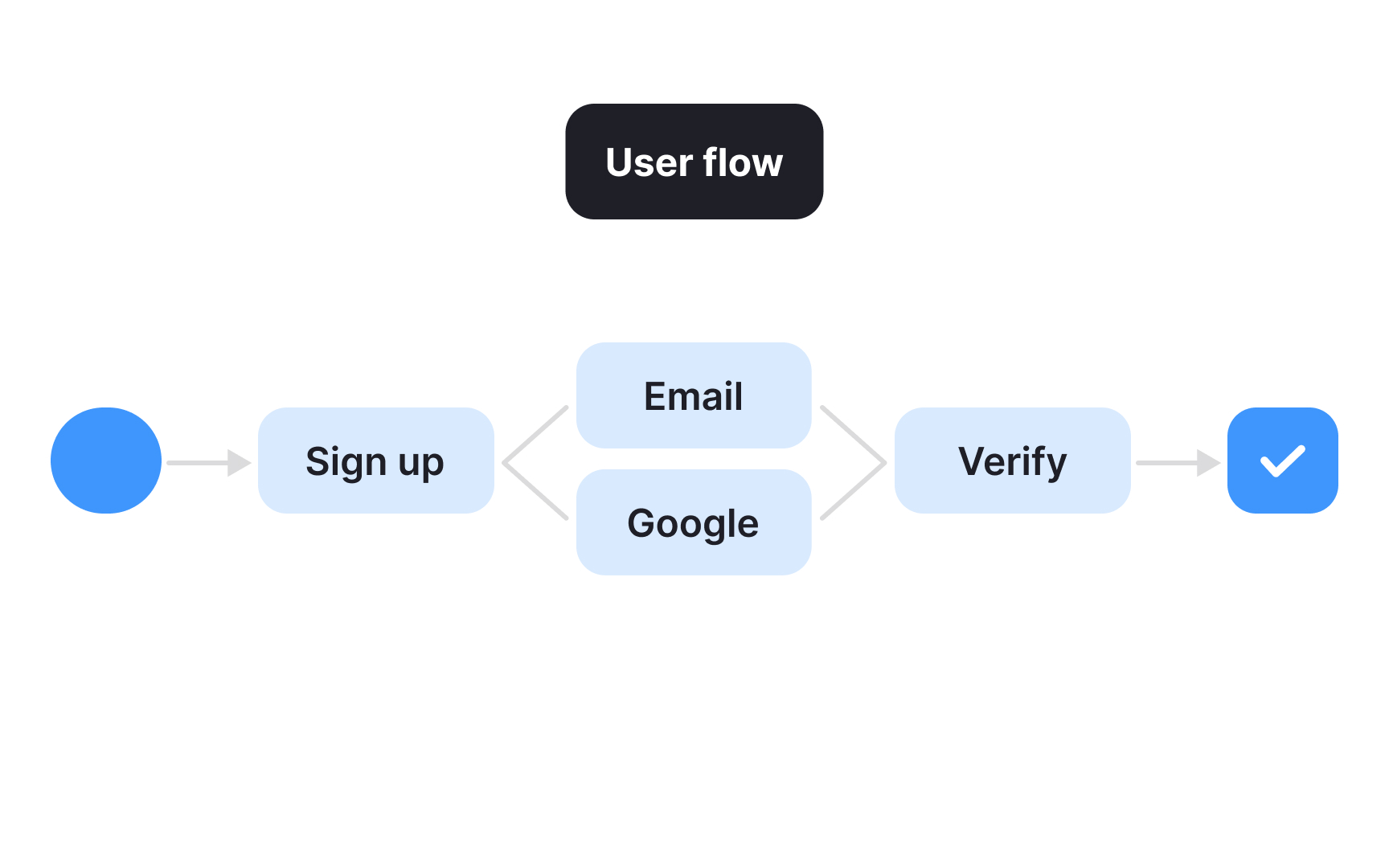
A user flow for signup: one entry point, one decision branch, one success state. The branch is the point of the diagram, since every fork is a place users can get lost. From the lesson Types of Journey Maps.
Zoomed out, the same product looks different. A journey map covers the whole relationship across channels and time; the user flow lives inside it, at the resolution of screens and taps.
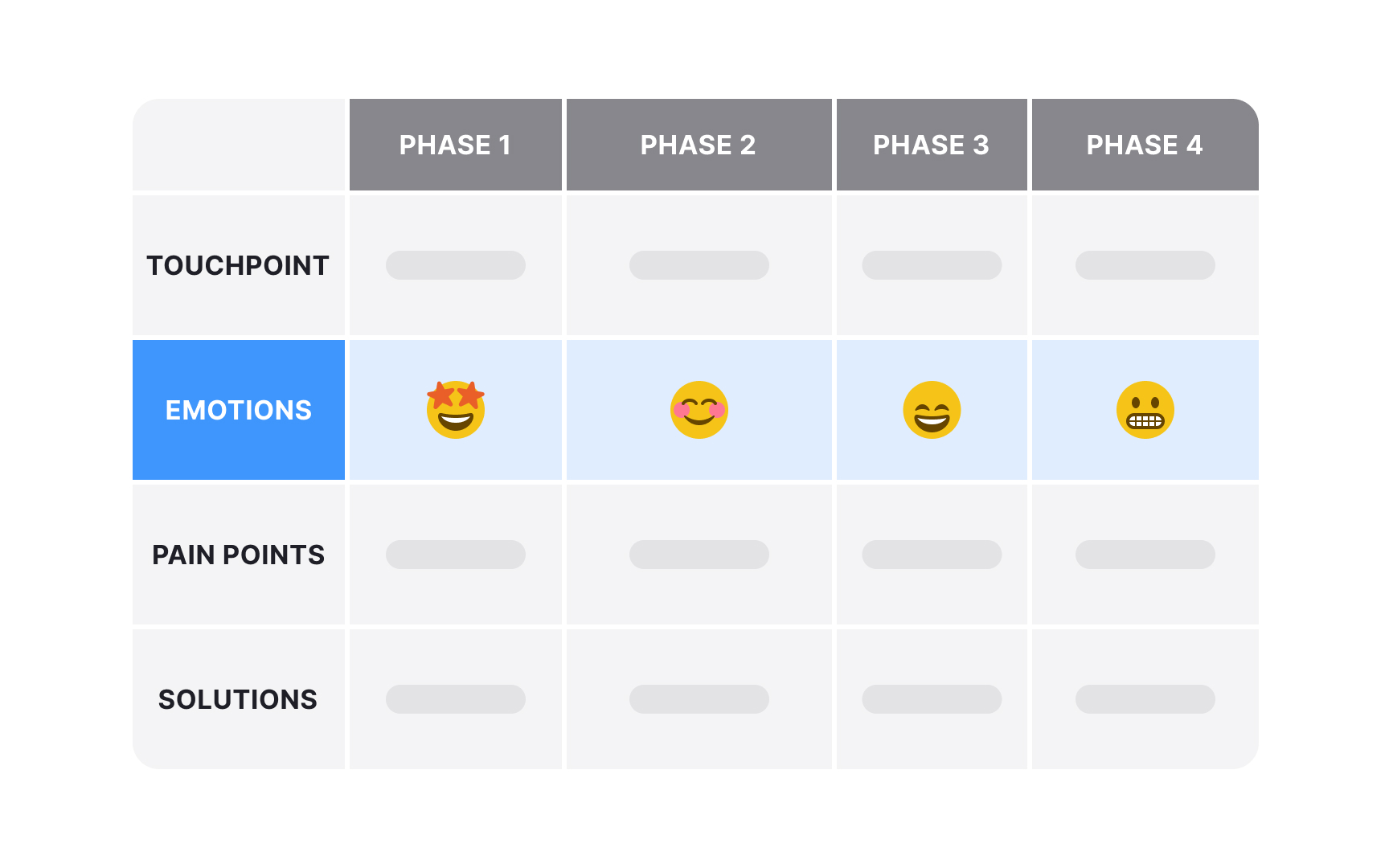
The zoomed-out cousin: a journey map spans stages and emotions across the whole experience, where a user flow captures one task at screen resolution.


