

Sooner or later, a pull request announces that its branch has conflicts that must be resolved. It sounds alarming, and many people's first instinct is to start over. A conflict, though, is just Git asking a question it can't answer alone. Nothing is broken when it appears and nothing is lost: both versions are still there, waiting for a decision.
Conflicts happen when two branches change the same lines in different ways. Git combines changes to different parts of a file on its own, but when both sides rewrote the same sentence, someone has to choose. GitHub's web editor shows both versions between special markers, so you can keep one, the other, or a mix, and then commit the result. Once the markers are gone, the pull request can be merged as usual. AI app builders produce conflicts regularly, because they edit files at the same time as the people working on GitHub.
Most conflicts are small and quick to settle once you can read them. The real skill is knowing which version is right, and recognizing when a conflict is too complex for the browser. When in doubt, asking the person who made the other change takes a minute and prevents keeping the wrong version.
Merge conflicts in plain terms
A merge conflict happens when Git can't combine two sets of changes on its own. Usually, two branches changed the same lines of the same file in different ways, or one branch edited a file the other deleted [1].
Git merges most changes without help, even within one file, as long as they touch different lines. A conflict appears only when both sides want different things in the same place, and Git refuses to guess which is right.
On a pull request, the Merge pull request button stays inactive until the conflict is resolved. Nothing is lost while it waits: both versions are still there, ready for someone to decide.
Two edits to the same lines

Picture the bakery's opening hours. On main, someone changes a line of contact.html to Open 8 am to 6 pm. On a branch, someone else changes the same line to Open 9 am to 5 pm. Each change is fine on its own, but merging them forces a choice.
Git can't know which is correct, because the answer depends on information outside the files, like a decision made in a meeting. That's why conflicts need a person, and often a short conversation, rather than a technical fix.
Conflicts become more likely the longer branches live apart. Merging often, or updating a branch from main regularly, keeps both sides close and conflicts small.
Pro Tip! Updating a long-running branch from main every few days turns one big conflict into several small, easy ones.
Spotting a conflict on a pull request

A pull request with a conflict shows it in the merge box at the bottom. The merge button is inactive, the conflicting files are listed, and a Resolve conflicts button appears when the conflict can be handled in the browser [2].
If that button is inactive too, the conflict needs another Git tool, which usually means asking someone more technical for help.
Conflicts can appear at any time, not just when a pull request opens. A pull request that merged cleanly yesterday can conflict today if someone merged a change to the same lines in the meantime.
Reading conflict markers
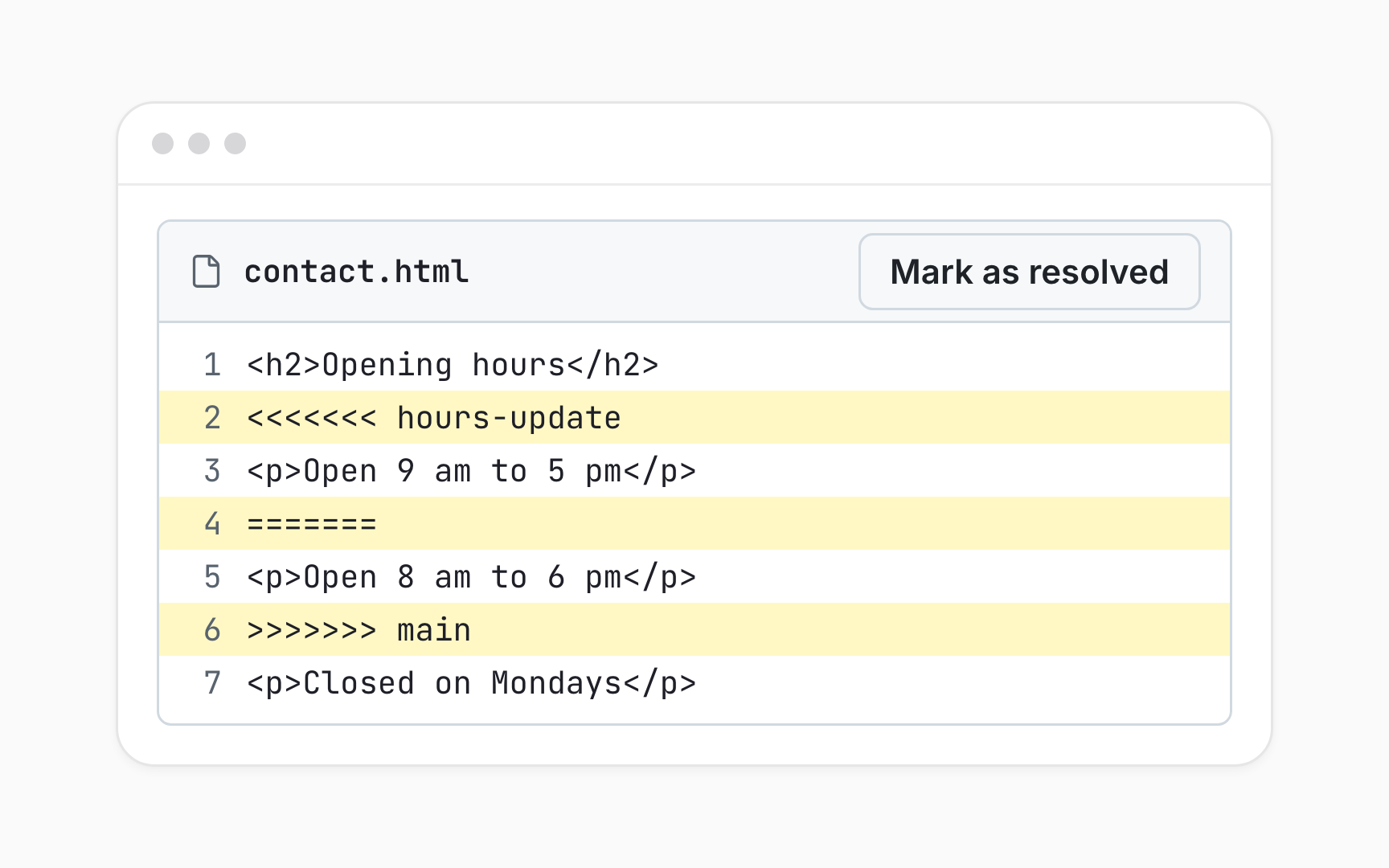
In the conflict editor, each conflict sits between three markers. Lines after <<<<<<< show one side's version, ======= divides the two, and lines before >>>>>>> show the other side's version, each labeled with its branch name.
Everything outside the markers merged cleanly and needs no attention. Only the sections between markers need a decision, and one file can contain several of them. The editor lists the conflicting files on the left, so moving between them is easy.
The markers are plain text, not special formatting. Left in a file and committed, they end up on the live page or break the code, which is why removing every one is part of resolving a conflict.
Resolving a conflict in the web editor
Resolving starts with Resolve conflicts, near the bottom of the pull request. The editor opens each conflicting file, where the markers and the unwanted lines are deleted and the final text is left in their place [3]. The result can keep one version, the other, or a mix of both.
After each file, Mark as resolved moves on to the next, and Commit merge saves the result. Behind the scenes, this merges the whole base branch into the pull request's branch, bringing it up to date with every other change too.
If the pull request's branch is protected, GitHub may offer to create a new branch for the resolution instead. Once the merge is committed, the pull request can be reviewed and merged as usual.
Removing every conflict marker

A conflict is resolved only when the file reads as if the conflict never happened. Every <<<<<<<, =======, and >>>>>>> line has to go, along with the version that wasn't chosen, leaving only the final text.
Leftover markers are a common mistake, especially in long files with several conflicts. Committed by accident, they show up as stray symbols on a live page or stop code from running altogether.
Reading the whole file once before marking it resolved catches most of them. For a web page, a preview after merging confirms the text looks right. And when the conflicting text was written by someone else, asking them which version is right takes a minute and saves a guess.
Conflicts too complex for the browser
GitHub's web editor handles simple conflicts, where competing changes touch the same lines. Other conflicts, like a file edited on one branch and deleted on the other, have to be resolved with another Git tool and pushed back to the branch [4].
An inactive Resolve conflicts button is the signal. For someone working only in the browser, the practical next step is to ask the pull request's author or a developer, sharing which files conflict and what each side intended.
Explaining the intent is the most useful contribution. A developer can handle the mechanics quickly once someone confirms which version reflects the decision.
Letting AI tools resolve conflicts
AI tools increasingly offer to resolve conflicts automatically. On GitHub, repositories with Copilot cloud agent turned on show a Fix with Copilot button in the merge box [5], and AI app builders handle their own sync conflicts in their own ways.
A tool can merge the text, but it can't know which decision was made in a meeting. An AI resolution that keeps the wrong opening hours looks perfectly tidy and still publishes the wrong information.
An AI resolution deserves the same review as any other change. Reading the resulting lines in each conflict area before merging, and confirming the choice with whoever made the other change, keeps the right version.
Topics
References
- Merge conflicts - GitHub Docs | GitHub Docs
- Resolving a merge conflict on GitHub - GitHub Docs | GitHub Docs
- Resolving a merge conflict on GitHub - GitHub Docs | GitHub Docs
- Resolving a merge conflict on GitHub - GitHub Docs | GitHub Docs
- Resolving a merge conflict on GitHub - GitHub Docs | GitHub Docs