

Changing a live project feels risky because the change and the working version share one space. One wrong edit to the homepage and everyone sees it. On a small team, that can mean a broken page for every visitor until someone notices. Branches separate the two, so you can try something new while the version everyone relies on stays untouched.
A branch is a separate line of work inside the same repository. It starts as a copy of the main branch at that moment and records its own commits as you go. Each branch has a name, and the branch selector above the file list switches between them. When the work is ready, the branch is merged back, usually through a pull request where others can review it first. Branches are cheap to create and safe to delete once merged, which is why teams use them for almost every change, and why AI app builders sometimes create them on their own when two sets of edits collide.
The main branch should always hold a version people can trust. Branches give experiments, fixes, and drafts somewhere else to live until they're ready, so a half-finished idea never reaches the people relying on main. It also lets several people work at once without stepping on each other's changes.
Branches as parallel lines of work
A branch is an independent line of commits inside a repository. Every repository starts with one, usually main, and a new branch begins as a copy of an existing one at that moment. From then on, commits on one branch don't touch the other.
Picture two people working on the same website. One redesigns the menu page on a branch called menu-redesign while the other fixes a typo on main. Both keep committing, and neither sees the other's work until the branches are combined in a merge.
Git was designed for this. One of its original goals was strong support for thousands of parallel branches [1], and a branch is little more than a pointer to a commit, so creating one is nearly instant [2]. That's why teams branch for almost every change, not just big projects.
Why branches are not folders
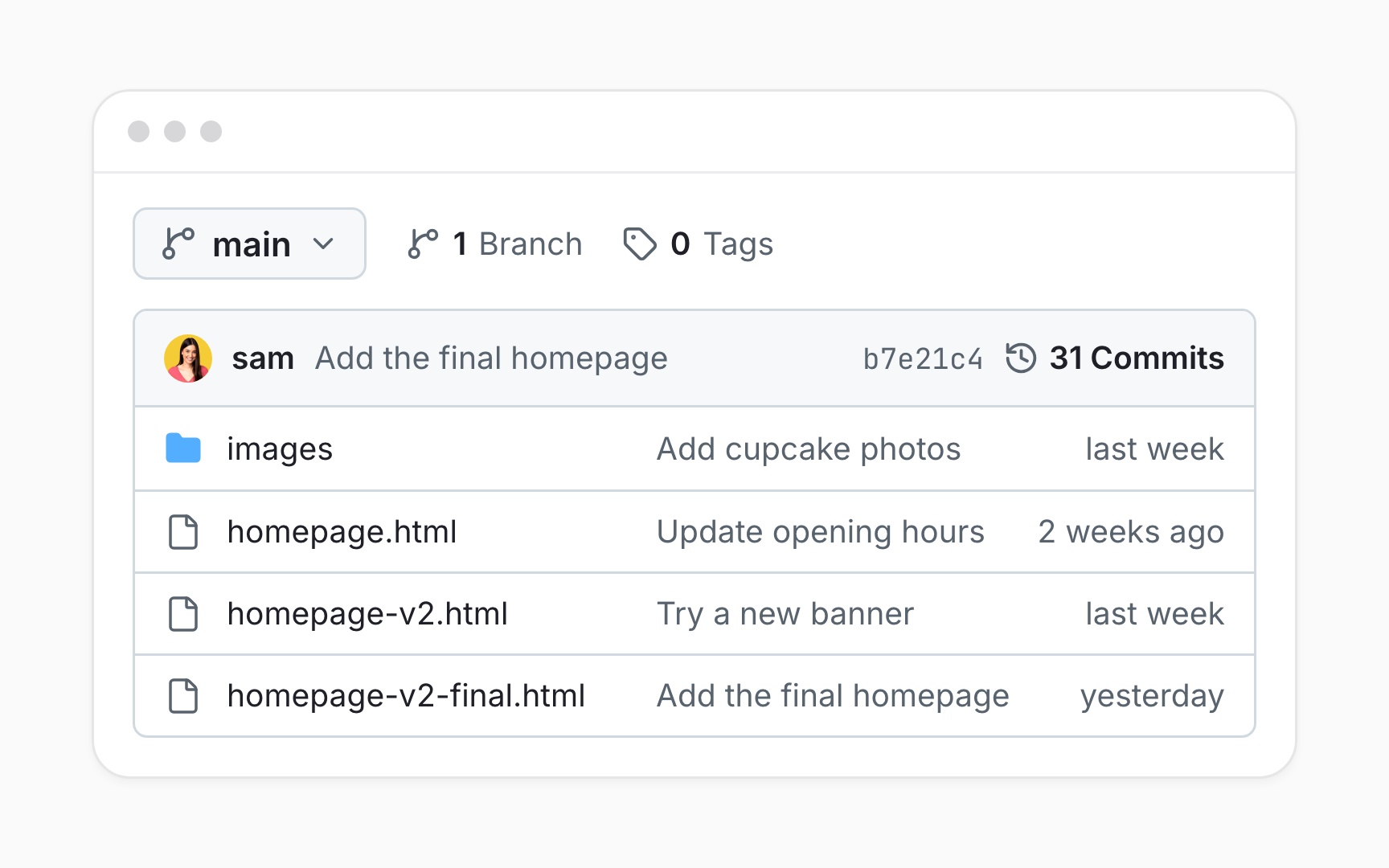
A common first guess is that a branch works like a folder with its own copy of the project. It doesn't. Folders sit side by side, so both versions are visible at once. A branch is another version of the same files, and the repository shows one branch at a time.
Researchers who observed people learning Git found exactly this confusion: newcomers treated branches as folders or files and tried to open them like one [3]. On GitHub, switching to another branch doesn't add anything to the file list. The same index.html simply shows the version saved on that branch.
The folder habit leads to real mistakes, like saving homepage-v2.html next to the original instead of creating a branch. That doubles the files, splits the history across two names, and leaves the team guessing which one is current.
Switching branches with the branch selector
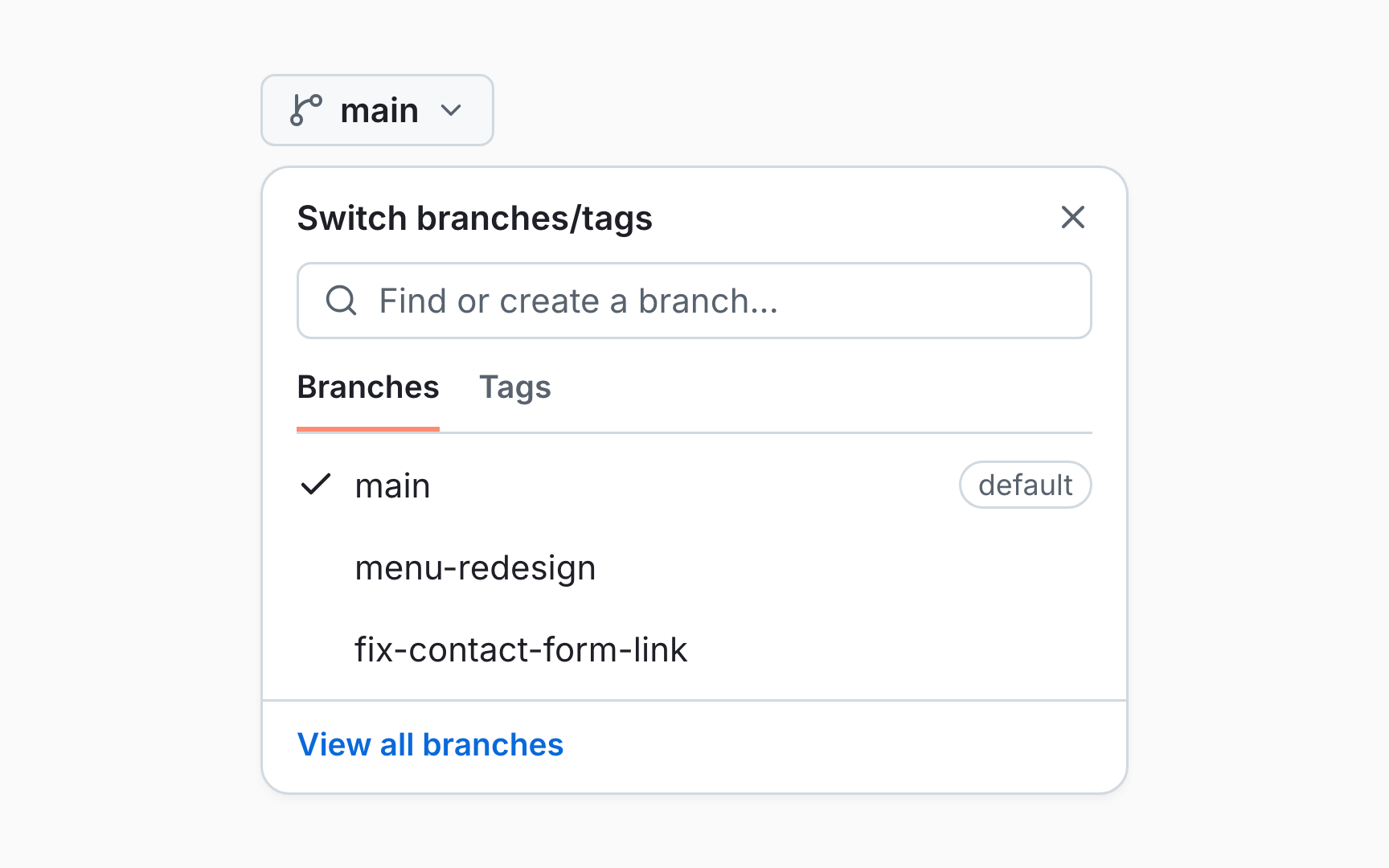
The branch selector sits above the file list and shows the current branch, usually main. Opening it lists the repository's branches, with a field for finding one by name, and choosing a branch switches the page to that branch's version of the project.
Everything on the page follows the choice: the file list, each file's contents, the README, and the latest commit. Opening the commit history from there shows that branch's commits. It's the quickest way to check work in progress, like a redesigned page that hasn't been merged yet.
Switching branches on GitHub is safe at any time. It changes only what that browser shows, and nothing is moved, copied, or deleted. Teammates looking at the same repository keep seeing whichever branch they chose.
Creating a branch in the browser
A branch takes seconds to create. Typing a new name into the branch selector's Find or create a branch... field offers a Create branch option, which starts the branch from whichever branch is currently shown. The Branches page, reached through View all branches, has a New branch button that asks for the starting point, called the source, explicitly [4].
The starting point matters. A new branch copies the branch it starts from, so creating one while an unfinished feature branch is selected carries that unfinished work along. A glance at the selector before creating a branch avoids building on the wrong base.
Branches also appear as a side effect of other actions. Choosing a new branch in the commit dialog creates one automatically, and many AI tools create their own branch for each task. All of them end up in the same list.
Pro Tip! Creating branches needs write access. Contributors without it fork the repository and create branches in their own copy.
Naming branches clearly


A branch name shows up in the branch list, in pull requests, and in notifications, often before anyone opens the work. A clear name describes it, like fix-contact-form-link or add-spring-menu. Short lowercase words joined by hyphens are the usual convention, since branch names can't contain spaces.
Many teams add a prefix for the kind of work, like fix/ or feature/, or the number of the related issue, like 42-add-gallery. Whatever the pattern, consistency is what helps: a list of branches that follow one style can be scanned at a glance.
Vague names cost time later. A repository full of branches called update, test, or maya-changes-2 forces everyone to open each one to learn what it holds and whether it's still needed.
Branches and pull requests
A branch holds work, and a pull request asks to merge it into another branch, usually main. Together they make up the everyday pattern GitHub calls GitHub flow: create a branch, make changes, open a pull request, address review comments, merge, and delete the branch [5].
The pull request is where a branch becomes visible to the team. It lists the commits, shows every changed line, and collects comments and approvals in one place. New commits added to the branch appear in the open pull request automatically, so feedback can be addressed without starting over.
Branches without pull requests tend to be forgotten. Work nobody reviews never reaches main, and the longer it waits, the further main moves on and the harder the eventual merge becomes. Opening a pull request early, even as a draft, keeps unfinished work visible.
Deleting branches after a merge

Once a pull request is merged, its branch has done its job. A Delete branch button appears near the bottom of the merged pull request for anyone with write access [6].
Deleting a merged branch loses nothing. Its commits are already part of the branch it was merged into, and the pull request keeps the full record of commits, changes, and comments. If the branch is needed again, a Restore branch button on the same pull request brings it back.
Leftover branches clutter the list and mislead people later. With dozens of old branches, it's hard to tell which work is still active, and someone may start new work from a stale one by mistake. Cleaning up right after each merge keeps the list short and current.
Pro Tip! An admin can turn on Automatically delete head branches in the repository settings, so merged branches disappear without anyone clicking.
Sync branches created by AI builders
AI app builders sometimes create branches on their own, usually when their copy and GitHub's copy disagree. Lovable, for example, syncs one active branch, and when the two sides diverge, it pushes its version to a separate branch called lovable-sync instead of overwriting anything [7].
To someone new to branches, this looks like the project split in two. Nothing is lost, though. The builder's version waits on its own branch, while the main branch keeps the changes made elsewhere, until someone combines them.
Bringing them together uses the usual workflow: open a pull request from the sync branch, check what differs, and merge. If both sides changed the same lines, GitHub reports a conflict and asks which version to keep. Builders without sync branches handle the same situation differently, sometimes by overwriting one side, so it's worth knowing a tool's approach.
Topics
References
- Git - A Short History of Git
- Git - Branches in a Nutshell
- Challenges and Confusions in Learning Version Control with Git | SpringerLink
- Managing branches within your repository - GitHub Docs | GitHub Docs
- GitHub flow - GitHub Docs | GitHub Docs
- Deleting and restoring branches in a pull request - GitHub Docs | GitHub Docs
- Sync your Lovable project with GitHub - Lovable Documentation | Lovable Documentation