


TL;DR
- Speed up tasks with key combos or quick actions.
- Reduce repetitive effort in workflows.
- Improve productivity and navigation.
- Common in software, apps, and operating systems.
Definition
A shortcut is a predefined action, often triggered by key combinations or simple gestures, that allows users to perform tasks more quickly than navigating through menus or commands.
Detailed Overview
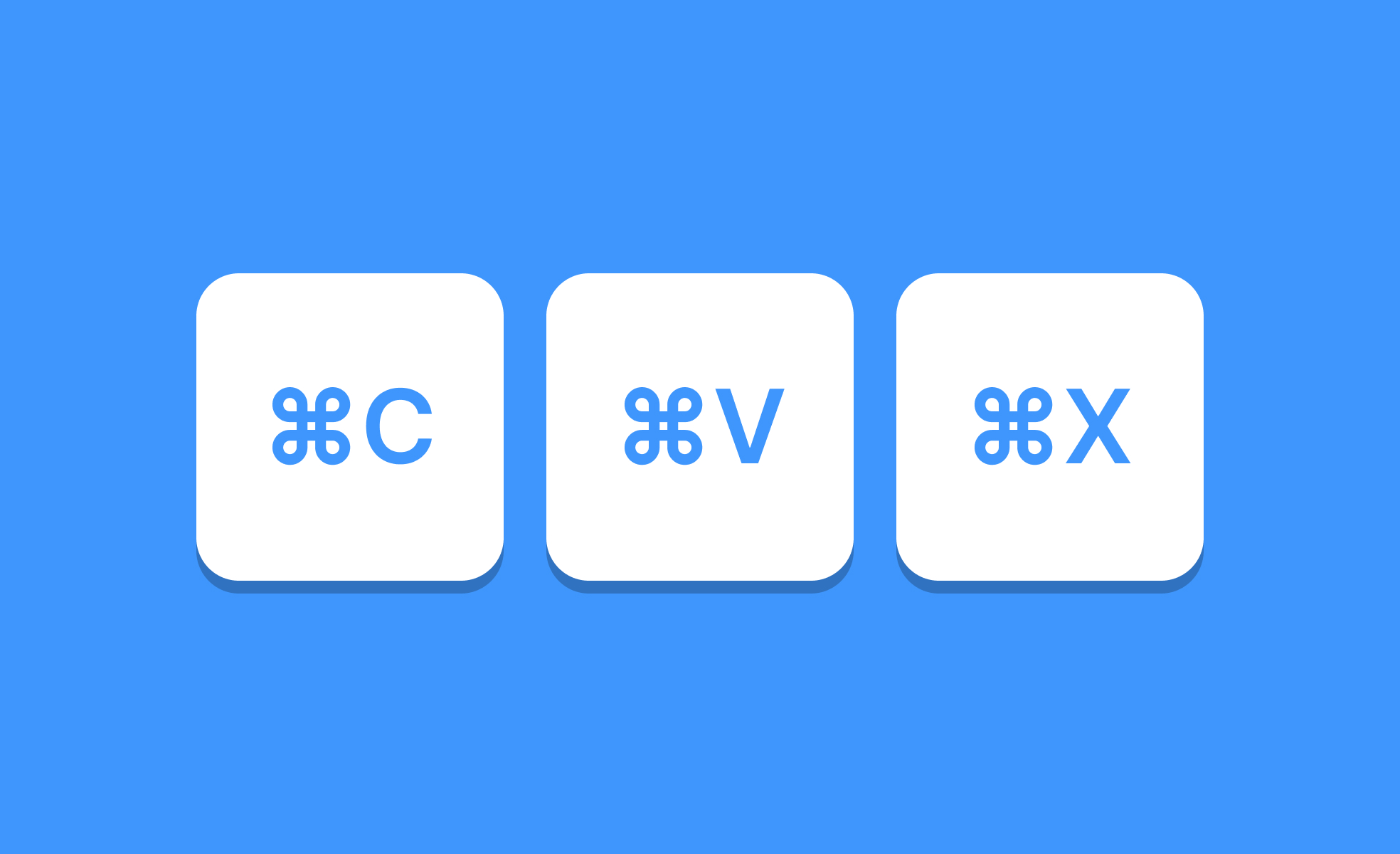
Shortcuts are efficiency tools designed to save time and reduce friction in digital environments. Instead of forcing users to navigate through layered menus, shortcuts provide direct access to actions, significantly improving productivity. Common examples include “Ctrl + C” for copy or gesture-based shortcuts like swiping to archive an email.
A frequent question is why shortcuts matter when menus or buttons already exist. While menus provide discoverability for new users, shortcuts cater to power users who perform tasks repeatedly. By bypassing navigation, shortcuts streamline workflows, creating smoother interactions for those who are familiar with the system.
Another common query relates to memorization. Users often worry that shortcuts require learning too many key combinations. Effective design addresses this by prioritizing common actions and keeping shortcuts intuitive, often aligning them with familiar patterns across applications. Over time, users naturally adopt shortcuts that save them the most effort.
Shortcuts also play a major role in accessibility. Keyboard shortcuts allow users who cannot rely on mouse input to navigate interfaces efficiently. Similarly, customizable shortcuts enable users with specific needs to adapt tools to their workflows, ensuring inclusivity across abilities.
Teams often ask how to design shortcuts without overwhelming users. A layered approach works best: provide menus and toolbars for discoverability, while offering shortcuts for frequent actions. Advanced users can take advantage of them, but beginners can rely on traditional navigation.
Another important aspect is consistency. Shortcuts must behave the same across contexts to avoid confusion. For example, “Ctrl + S” should save in every application where saving applies. Inconsistent shortcuts increase cognitive load and erode trust.
Finally, shortcuts have strategic value. They signal to users that the product values efficiency, supporting professionals who rely on speed.
Learn more about this in the Keyboard Shortcuts Exercise, taken from the Intro to Menus in UI Lesson, a part of the UI Components I Course.


