


TL;DR
- Small overlays that explain or clarify elements.
- Triggered by hover, tap, or keyboard focus.
- Reduce visual clutter while offering guidance.
- Common in icons, forms, and data-heavy UIs.
Definition
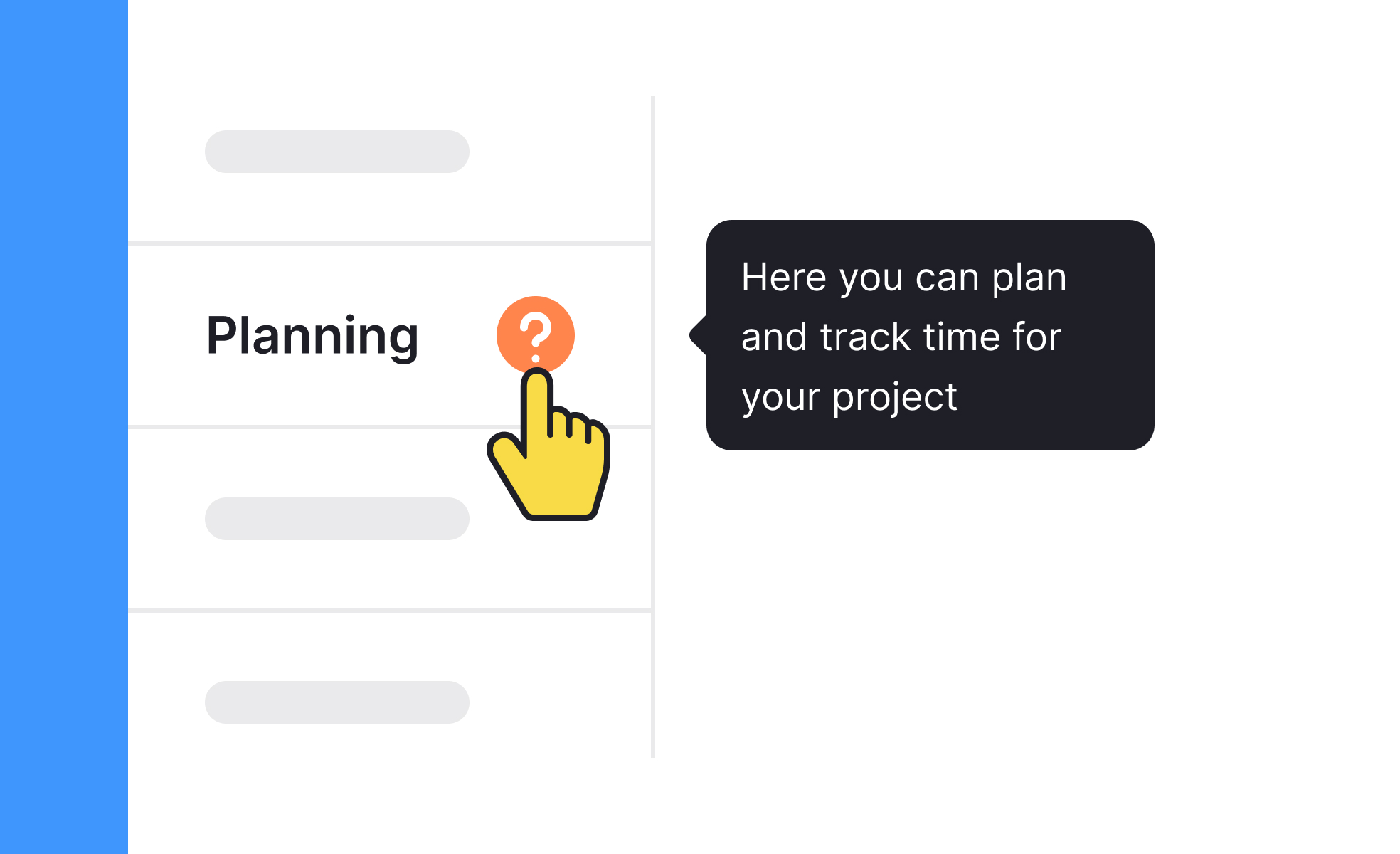
A tooltip is a lightweight UI element that provides additional information when a user interacts with an item, such as hovering over an icon or focusing with a keyboard.
Detailed Overview
Tooltips are designed to balance clarity with simplicity. Instead of overloading interfaces with constant explanations, tooltips appear only when needed, giving users contextual support without distracting from the main experience. This makes them particularly effective in interfaces with icons, data points, or controls that may not be self-explanatory.
A frequent question is when tooltips should be used. They work best for secondary information, such as clarifying icons, abbreviations, or advanced options. For critical instructions, inline text is more appropriate since tooltips may go unnoticed. For example, an unfamiliar settings icon can have a tooltip saying “Manage preferences,” while important warnings should be visible without extra action.
Another common query is about triggering behavior. In desktop environments, tooltips are often shown when a user hovers with a mouse. On touchscreens, tap-and-hold or focus events replace hover since there is no cursor. Designers must adapt tooltip behavior to different input methods, ensuring consistency across devices.
Accessibility is another major concern. Poorly designed tooltips can exclude users if they disappear too quickly, are not keyboard-accessible, or cannot be read by screen readers. Accessible tooltips remain visible long enough, can be dismissed manually, and provide proper ARIA attributes for assistive technology.
Performance is also a consideration. Tooltips should appear instantly and align visually with the element they describe. Delayed or misplaced tooltips frustrate users and reduce trust in the interface. Smooth performance and clear positioning are critical to their effectiveness.
Finally, tooltips play a role in onboarding and continuous learning. They guide new users without cluttering the screen permanently and allow experienced users to explore advanced features at their own pace. When implemented thoughtfully, tooltips improve discoverability, reduce friction, and support user confidence.
Learn more about this in the Tooltips Exercise, taken from the Common UI Component Definitions Lesson, a part of the UI Components I Course.


