

Small fixes shouldn't need a developer. A typo on a landing page, an outdated link in the README, a new photo for the homepage: these are changes you can make yourself, right in GitHub's web editor, in about the time it takes to ask someone else to do it. The web editor works in any browser, with nothing to install.
GitHub lets you open almost any text file in the browser, change it, and save it as a commit without leaving the page. The same goes for creating new files, renaming them, and uploading images or documents. Before saving, a preview shows exactly what will change. Each save asks you to describe the change and decide where it goes: straight into the main branch, or onto a new branch where someone can review it first. AI app builders make the same decision for you, usually without asking, and often send every change straight to main.
Every edit on GitHub becomes part of the project's history. That's what makes editing in the browser safe, as long as each change has a clear message and goes to the right place. A quick fix with a vague message is harder to trust than a slower one that explains itself. Branches take a little longer, but they give teammates a chance to catch mistakes before anyone else sees them.
Editing a file in the browser
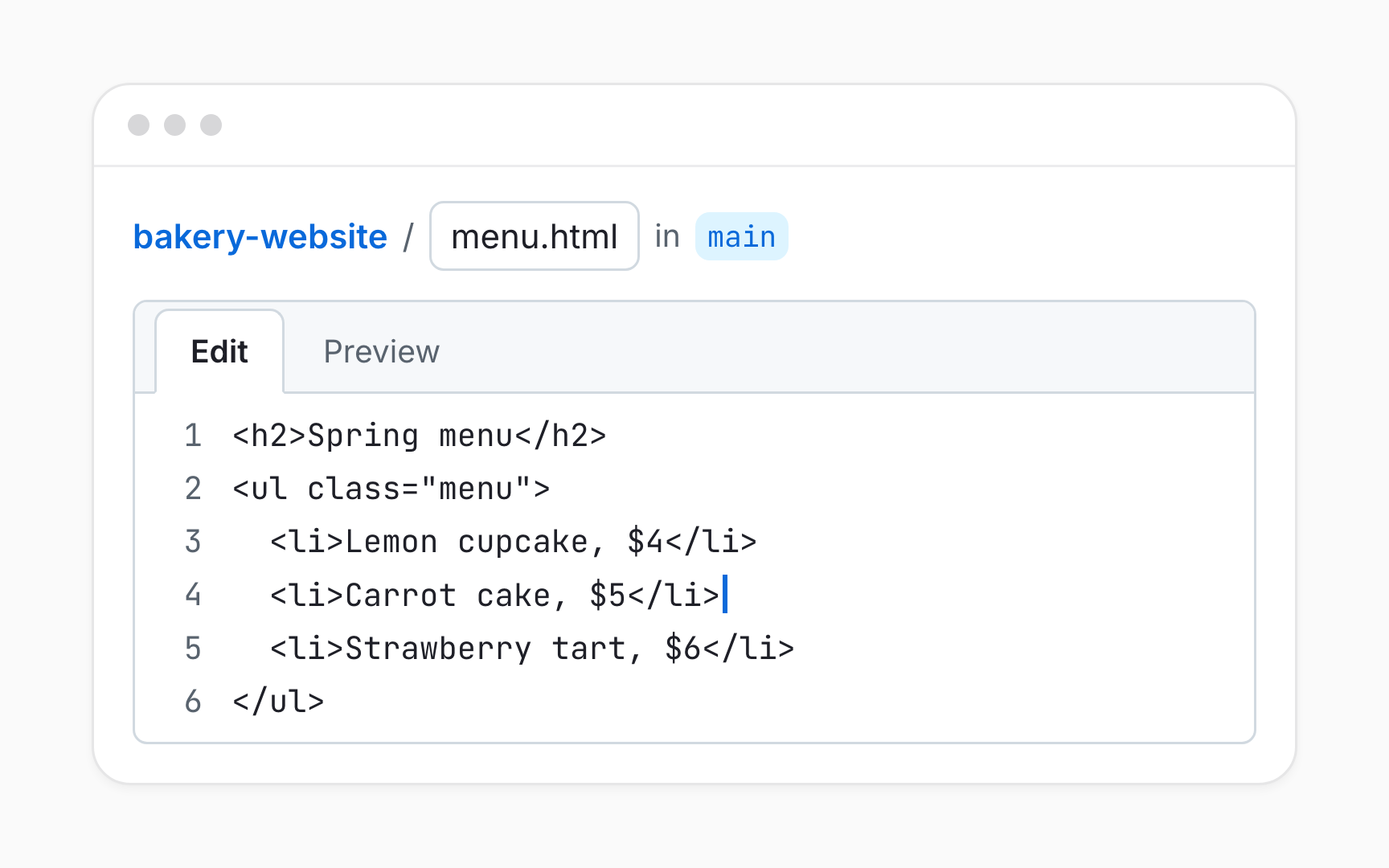
Any text file in a repository can be changed without leaving GitHub. Opening the file and selecting the pencil icon in its top-right corner turns the page into an editor, with the content ready to change and nothing to install [1].
Above the content, Preview shows the result of the edit before it's saved. For a Markdown file like a README, that means the formatted page. Checking it catches slips that are easy to miss in raw text, like a heading that didn't render or a line deleted by accident while fixing a typo.
Typing alone saves nothing. The edit becomes part of the project only after Commit changes... is selected and the commit is confirmed. Closing the tab before that throws the edit away, which is reassuring for experiments and risky for long edits, so big changes are better saved in smaller steps.
Creating and uploading files
The Add file menu above the file list offers two ways to add something new. Create new file opens an empty editor for typing a name and content, which suits text files like a new page or a note. Upload files accepts files dragged in from a computer, such as photos, PDFs, or exported designs, up to 100 at a time [2].
A name can create folders, too. Typing a slash in a new file's name, like pages/about.html, places the file inside a pages folder and creates that folder if it doesn't exist. Git tracks files, not folders, so a folder can't be added empty: it appears only once something is inside it.
Browser uploads are limited to 25 MiB per file. Larger files need other tools, and very large ones, like long videos or design source files, usually belong in separate storage, with a link kept in the repository.
Pro Tip! Compressing images before uploading keeps the repository small and quick to download for everyone who works on it.
The commit changes dialog
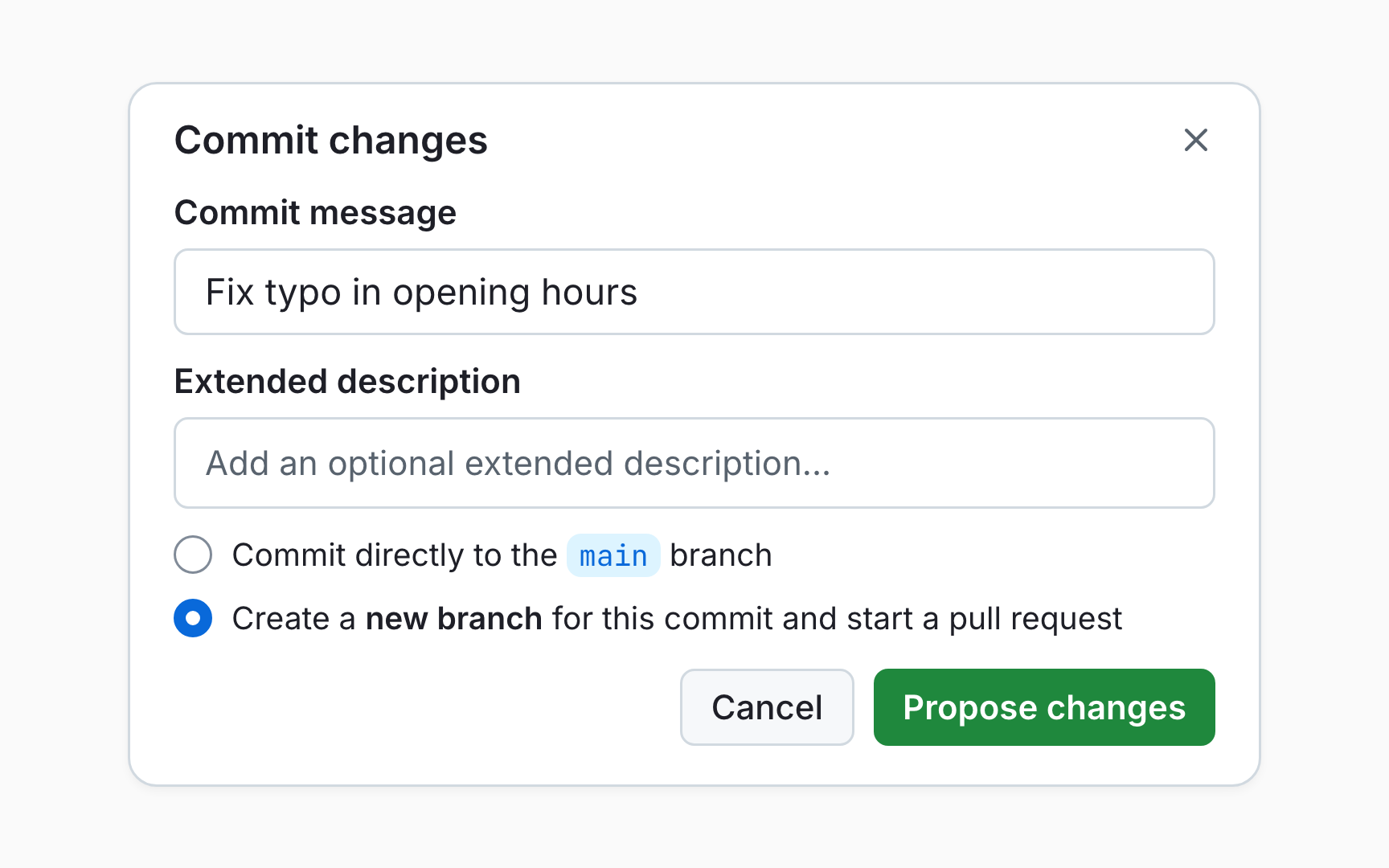
Selecting Commit changes... opens a dialog that turns an edit into a commit. It asks for a commit message, offers room for a longer description, and asks where the commit should go [3].
The message field arrives pre-filled with a default like Update index.html. Replacing it with the result of the change, like Fix typo in opening hours, keeps the history readable. The longer description holds the context a one-line summary can't: why the change was made, what was checked, or which request it answers.
The last choice decides who sees the change first: commit to the current branch, or create a new branch for it. GitHub's own guidance is that an edit on the default branch should go to a new branch with a pull request. Protected branches take the choice away, because they can't be edited directly in the browser.
Pro Tip! Typing an issue number like #12 in the commit message links the commit to that issue for anyone reading it later.
Committing to main vs. a new branch
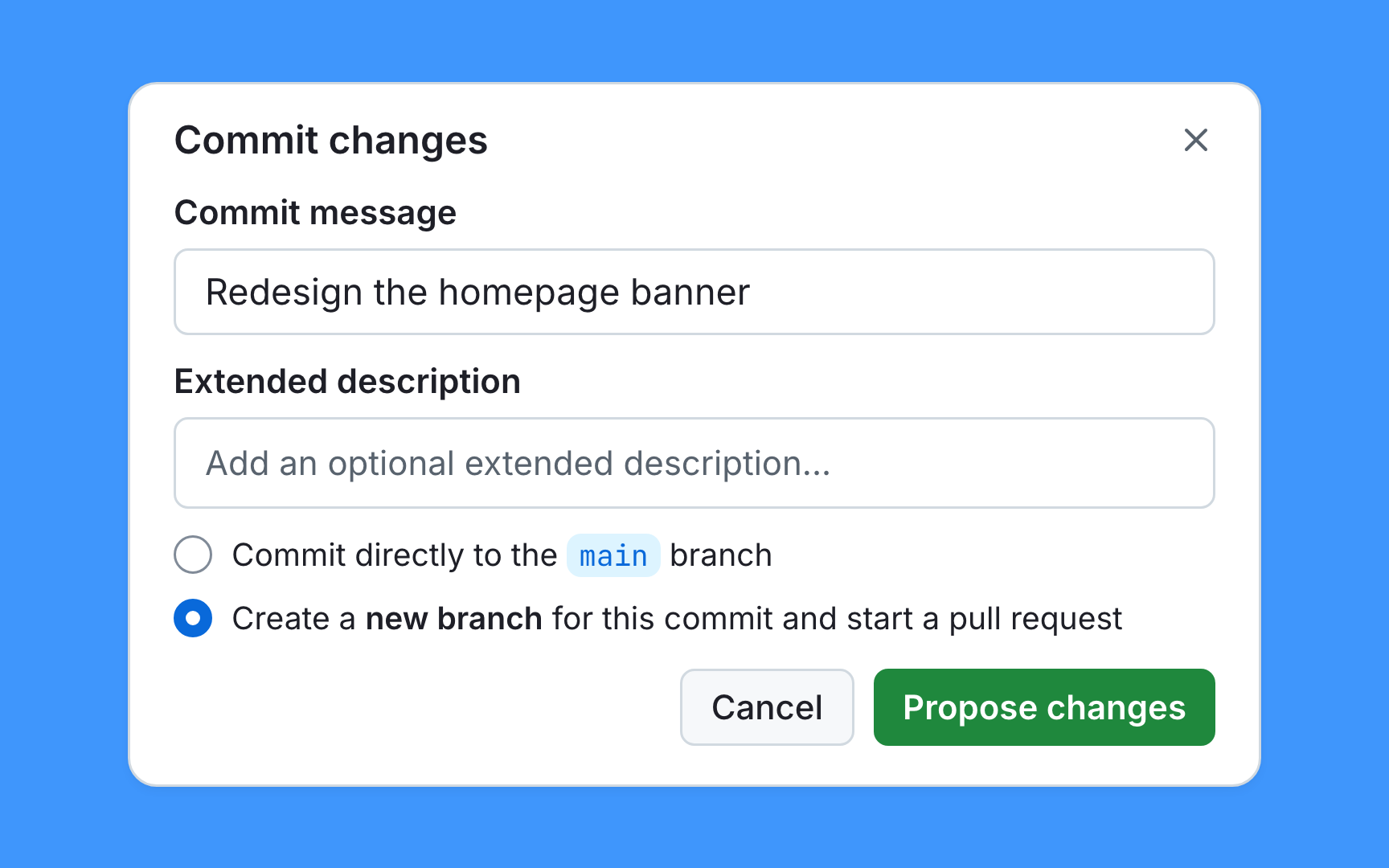

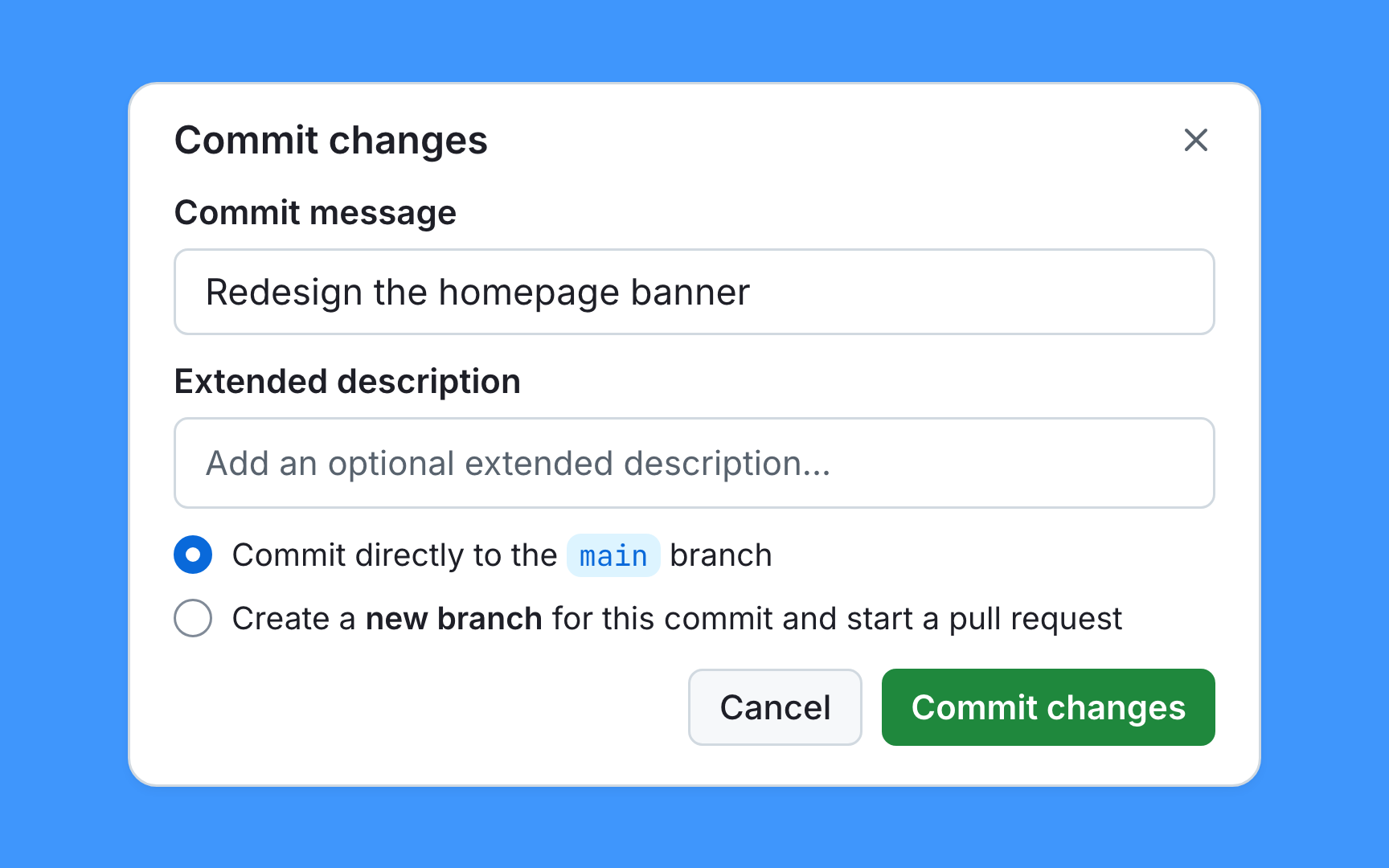

The commit dialog offers two destinations. Committing directly to the current branch, often main, puts the change into the version everyone relies on at once. Creating a new branch keeps the change separate and leads to a pull request, where someone can review it before it's merged.
Direct commits suit tiny, low-risk fixes in projects where that's the agreed habit, like a typo in a README. Anything visible to customers, anything that touches several files, and anything uncertain is safer on a branch. A review takes minutes, while undoing a mistake that already reached a live website takes longer and affects more people.
Many teams settle the question by protecting main, which blocks direct edits and requires a pull request. Several AI app builders lean the other way and push straight to the default branch, which is worth knowing before connecting one to a shared repository.
Renaming, moving, and deleting files
Renaming a file happens in the editor: opening it with the pencil icon and changing the name in the filename field. The same field moves files. Typing a folder name followed by a slash moves the file into that folder, and typing ../ at the start moves it up one level [4]. Deleting uses Delete file in the menu with three dots at the top of the file.
Each of these actions is saved as a commit, with the same message and branch choice as any edit. A deleted file disappears from the current version but stays in the history, which helps with recovery and causes problems for sensitive data, since anything once committed remains visible in earlier versions.
Renames deserve a quick check before committing. Pages and settings often point to files by name, so renaming style.css to main.css can leave every page that still links to the old name without its styling.
Editing without write access
Not every repository accepts direct edits. On a project owned by someone else, like an open-source library or another team's documentation, the pencil icon still works, but the change takes a different path.
Selecting it shows Fork this repository, which creates a copy under the editor's own account. The edit is made in that copy, and the final button reads Propose changes instead of committing. A pull request then goes back to the original project, where its owners review the change and decide whether to merge it [5].
This flow makes small contributions easy. A typo in a public guide can be fixed in a couple of minutes, with no setup and no special permission. The owners stay in control, because nothing changes in their repository until they accept the pull request.
Automatic commits from AI builders
AI app builders connected to GitHub save work on their own, but not all in the same way. The differences decide whether an edit made directly on GitHub is safe.
Three common patterns:
- Two-way sync on one branch, as in Lovable, where changes made on GitHub flow back into the builder [6]
- A working branch and a pull request, as in v0, which commits to a branch and opens a pull request when work is published [7]
- One-way pushes to the default branch, as in Figma Make, where code edited on GitHub is overwritten by the next push [8]
The last pattern is the one to watch. An edit made on GitHub looks saved, then disappears the next time the builder pushes, with no warning and no conflict to resolve. Checking which way a tool syncs before editing its repository by hand prevents that silent loss.
Topics
References
- Editing files - GitHub Docs | GitHub Docs
- Adding a file to a repository - GitHub Docs | GitHub Docs
- Editing files - GitHub Docs | GitHub Docs
- Moving a file to a new location - GitHub Docs | GitHub Docs
- Editing files - GitHub Docs | GitHub Docs
- Sync your Lovable project with GitHub - Lovable Documentation | Lovable Documentation
- GitHub | v0 Docs
- Push from Figma Make to GitHub | Figma Learn - Help Center