.svg)


Navigation refers to the way users find and access information within a digital platform. Good navigation helps users find what they need quickly and efficiently, while poor navigation can lead to frustration and confusion. There are different types of navigation systems that can be used, such as menus, search bars, and links to get around an interface. Each type serves a different purpose and can be more or less effective depending on the context. For example, a menu is great for organizing a large number of options, while a search bar is useful for quickly locating specific information.
In this lesson, we’ll explore the different types of navigation systems and discuss where and how to use them. You'll learn to create an effective and useful navigation system and improve users’ engagement and satisfaction with your product.
Global navigation
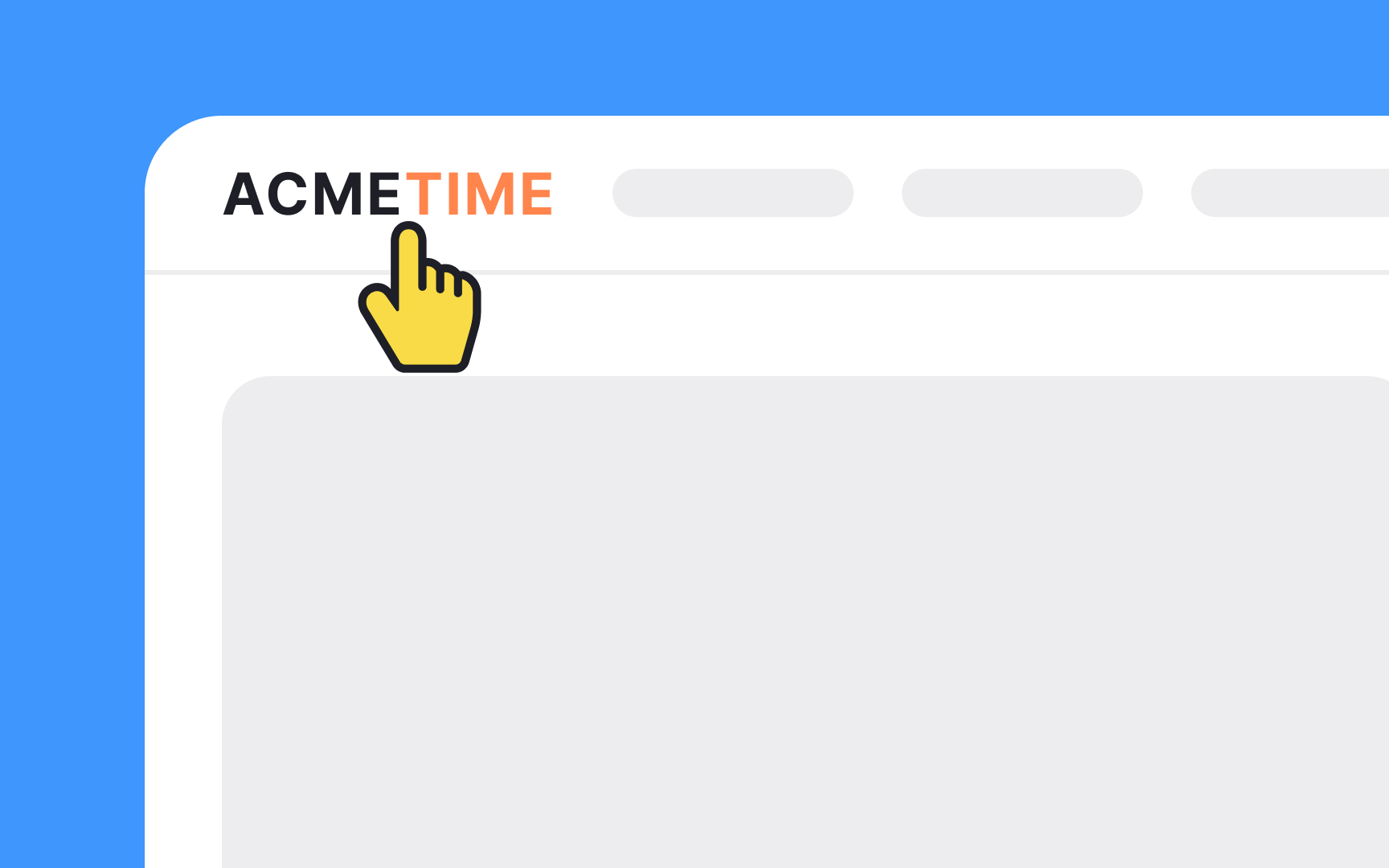


Global navigation, also known as primary navigation, is the main menu that helps users find their way around an interface. Usually located at the top or side of each page, it provides an overview and answers important questions users may have when first visiting a site, such as "Does this site have what I'm looking for?"
Global navigation is a consistent feature across all pages, ensuring users can easily move from one section to another.
It typically includes:
- Main links: Links to the most important sections, such as Home, About, Contact, Products, and Services.
- Dropdown menus: Provide access to subcategories or additional options within a main section.
- Buttons and tabs: Facilitate easy navigation to key functions or areas.
- Logo: Often clickable to return to the homepage.[1]
Local navigation
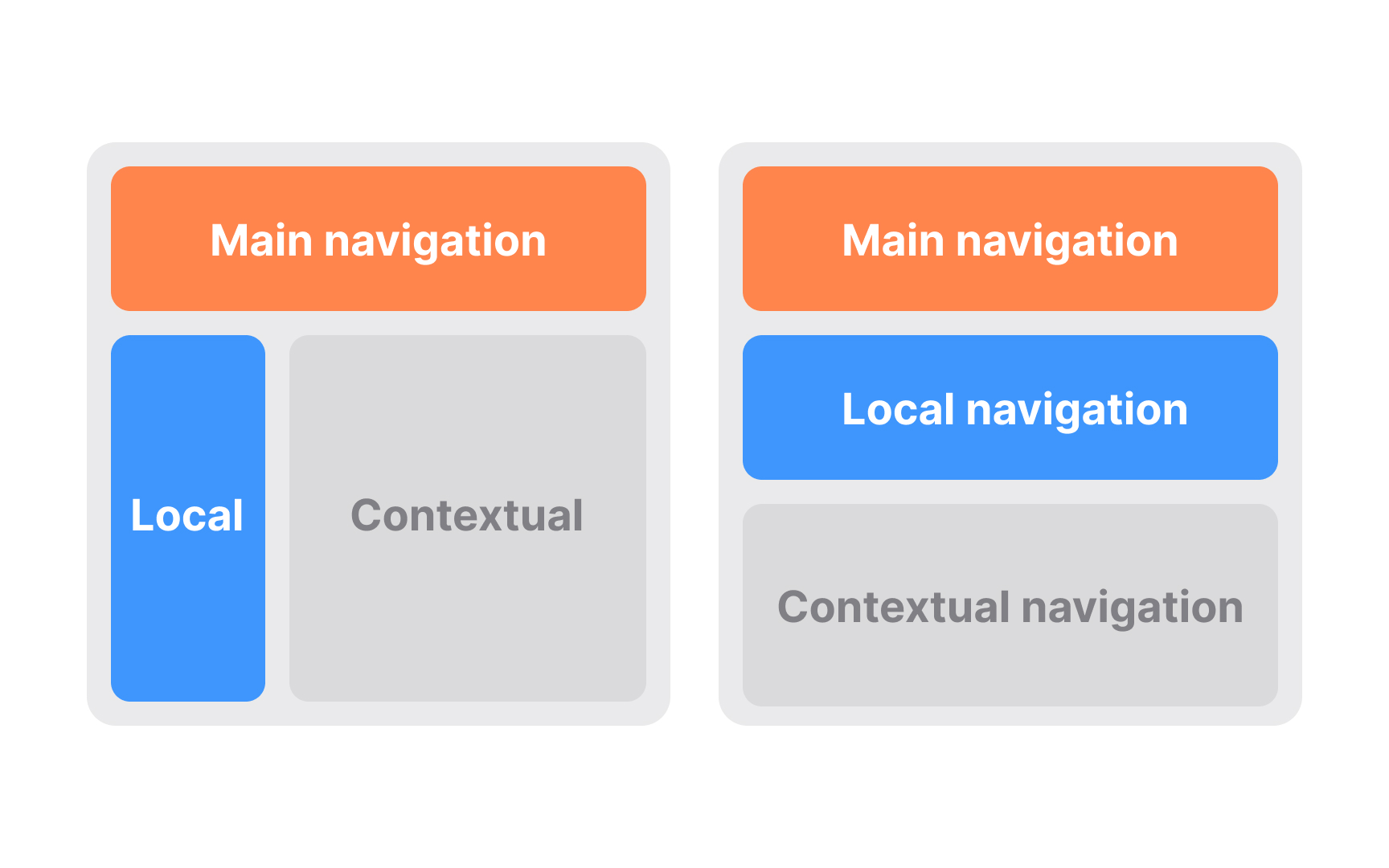
Local navigation, also called sub-navigation or page-level navigation, helps users access lower levels within a website's structure, below the main navigation pages. It shows other options at the same level of a hierarchy and options below the current page, helping users find related content easily.
Local navigation often works with the global navigation system as an extension of the main navigation.
Common arrangements of local navigation include:
- Inverted-L: Global navigation at the top, local navigation as a vertical list on the left.
- Horizontal: A second line of options under a horizontal global navigation or dynamic menus.
- Embedded vertical: Local navigation embedded between main navigation options in a vertical menu.
Use local navigation to provide context and show related topics and content, supporting both exploration and finding specific items.[2]
Contextual navigation

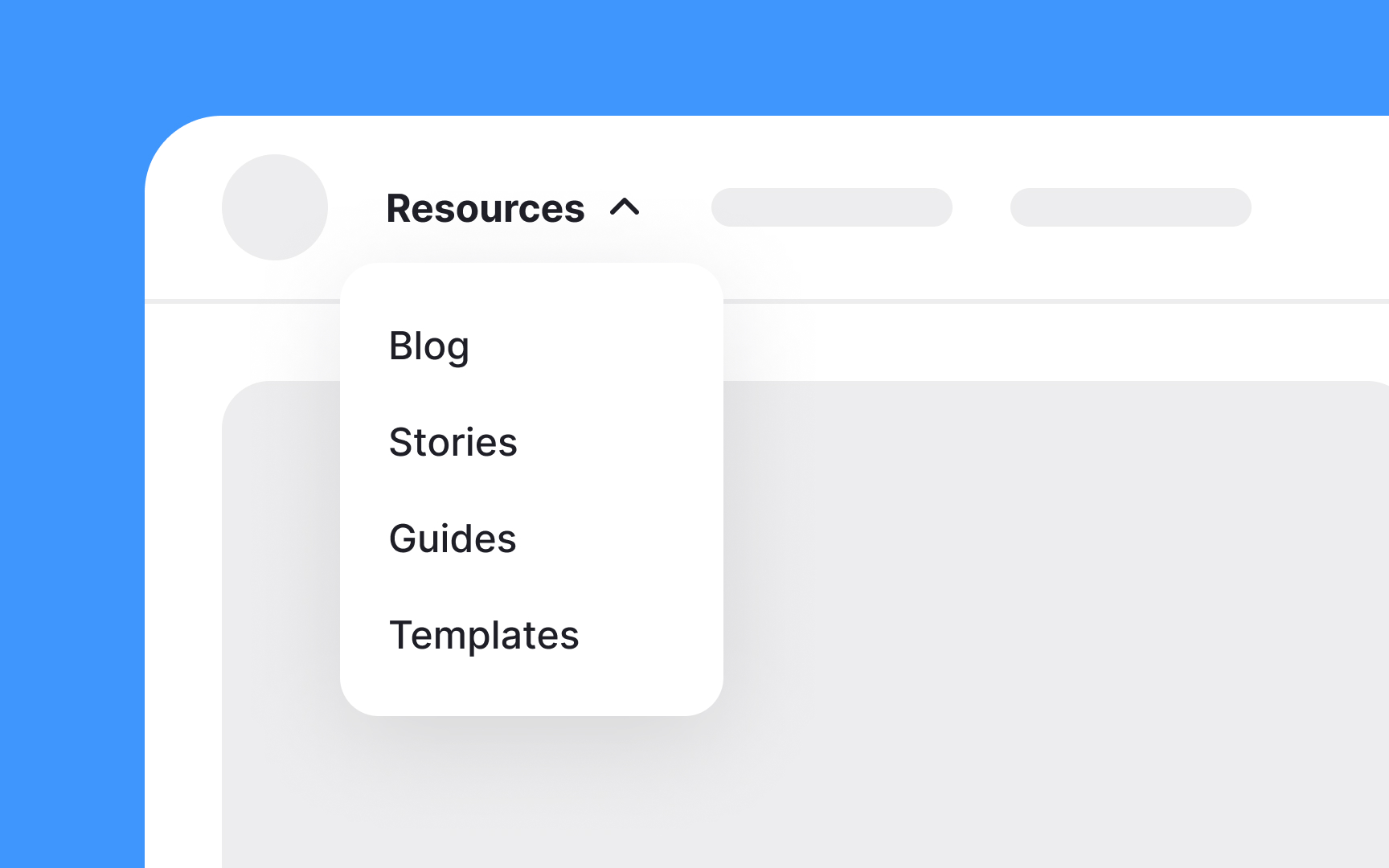
Contextual navigation is situational and can change based on the content. It helps users find related information by linking to similar pages, new content areas, different page types, or even other sites.
It can be of two types:
- Embedded navigation: Links are placed within the text itself, often shown as plain text links. These links may guide users to different formats or sites, sometimes with a note indicating this change.
- Related links: Links appear at the end or side of the content. They help users explore more articles or related content.
Contextual navigation is placed close to the content, creating a strong connection between the text and the linked pages. For example, news sites use related links to guide readers to other stories on the same topic, enhancing their reading experience.
Quick links
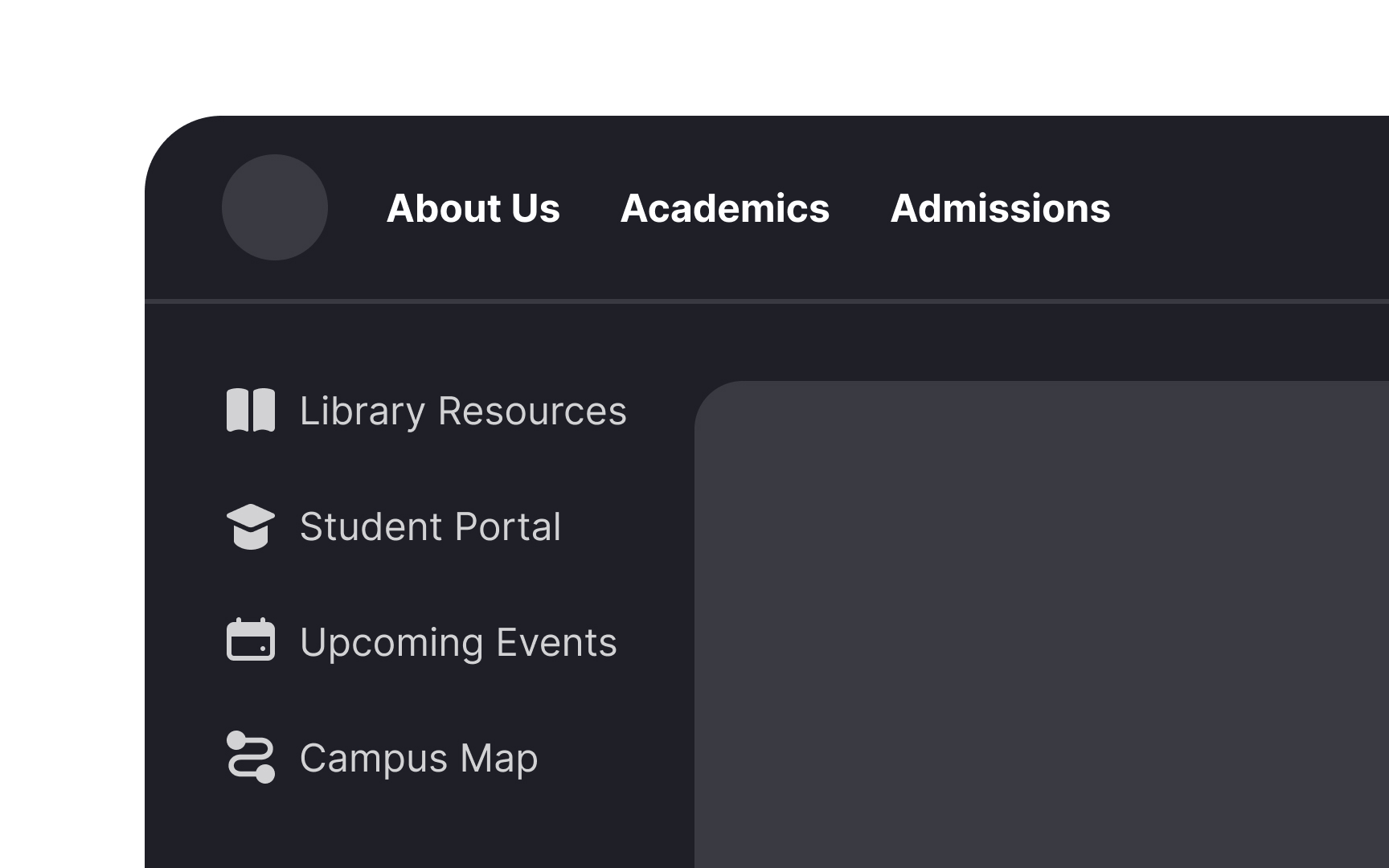
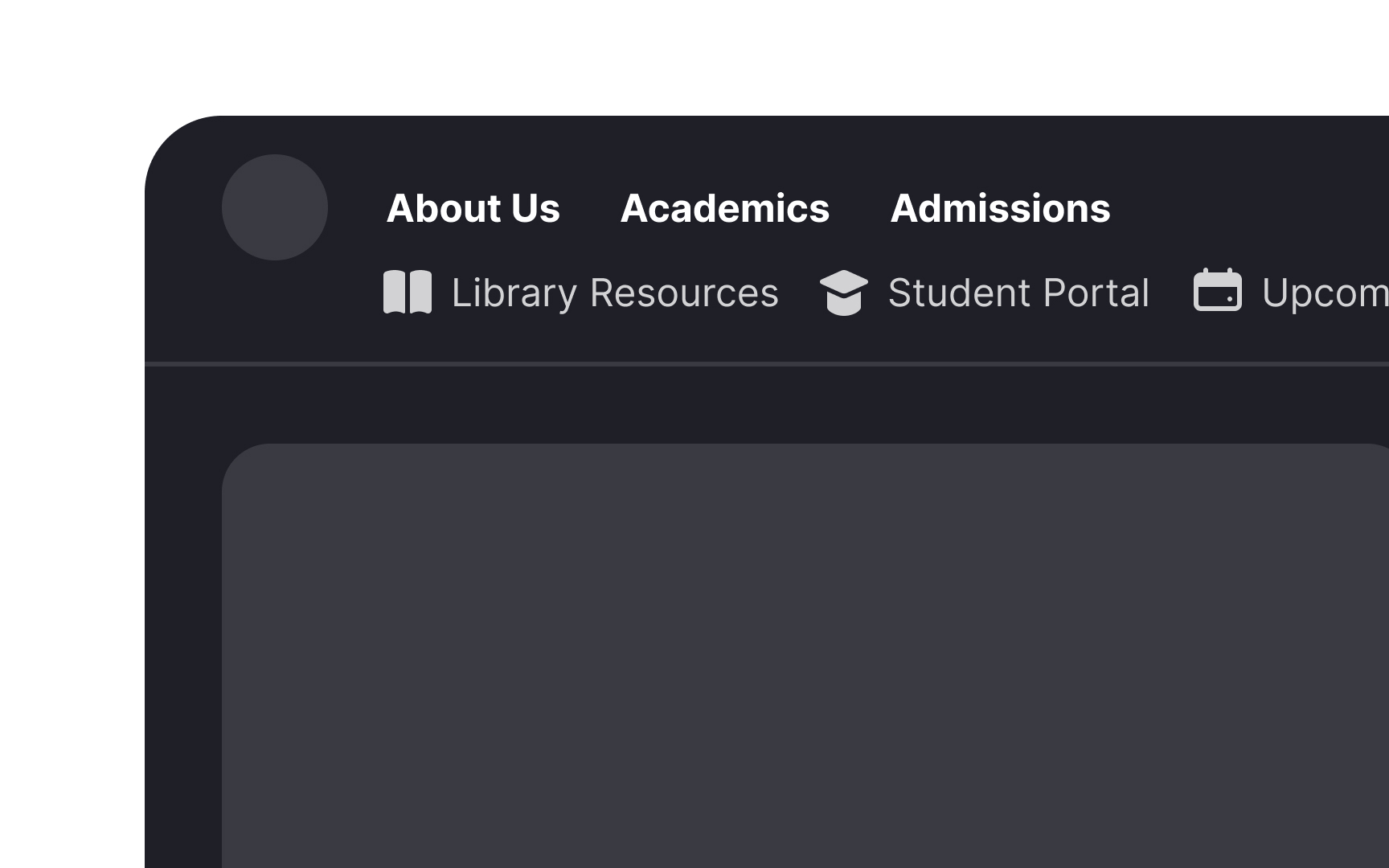
Quick links are a set of unstructured links located in an easy-to-see area on a page. They provide easy access to important content or areas of a site that aren't in the main navigation. Unlike contextual navigation, which is specific to a page, quick links are useful for the entire site. They often highlight frequently accessed content or tasks, or tasks that are usually hard to find and can promote deeper site areas.
Quick links may appear at the top or sides of pages. On the homepage, they might be in their own section, but on other pages, they might be in a drop-down or dynamic menu. These links can jump to various site areas, like a sub-site, online shop, or a new website.
However, quick links are considered an outdated pattern and are rarely seen on modern interfaces. Today, designers aim to create architectures that eliminate the need for hard-to-find categories, ensuring all content is easily accessible and logically organized.
Footer navigation
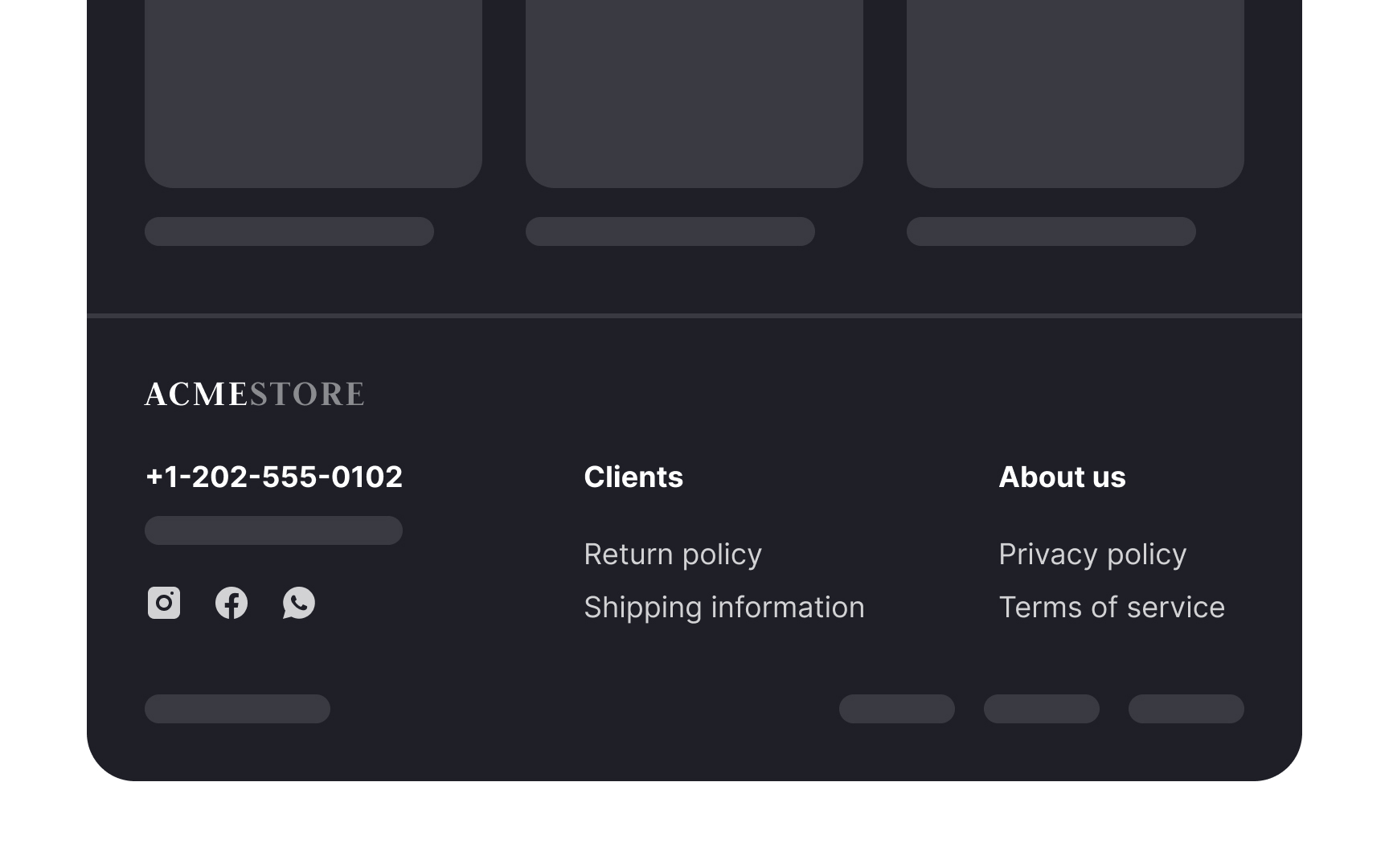
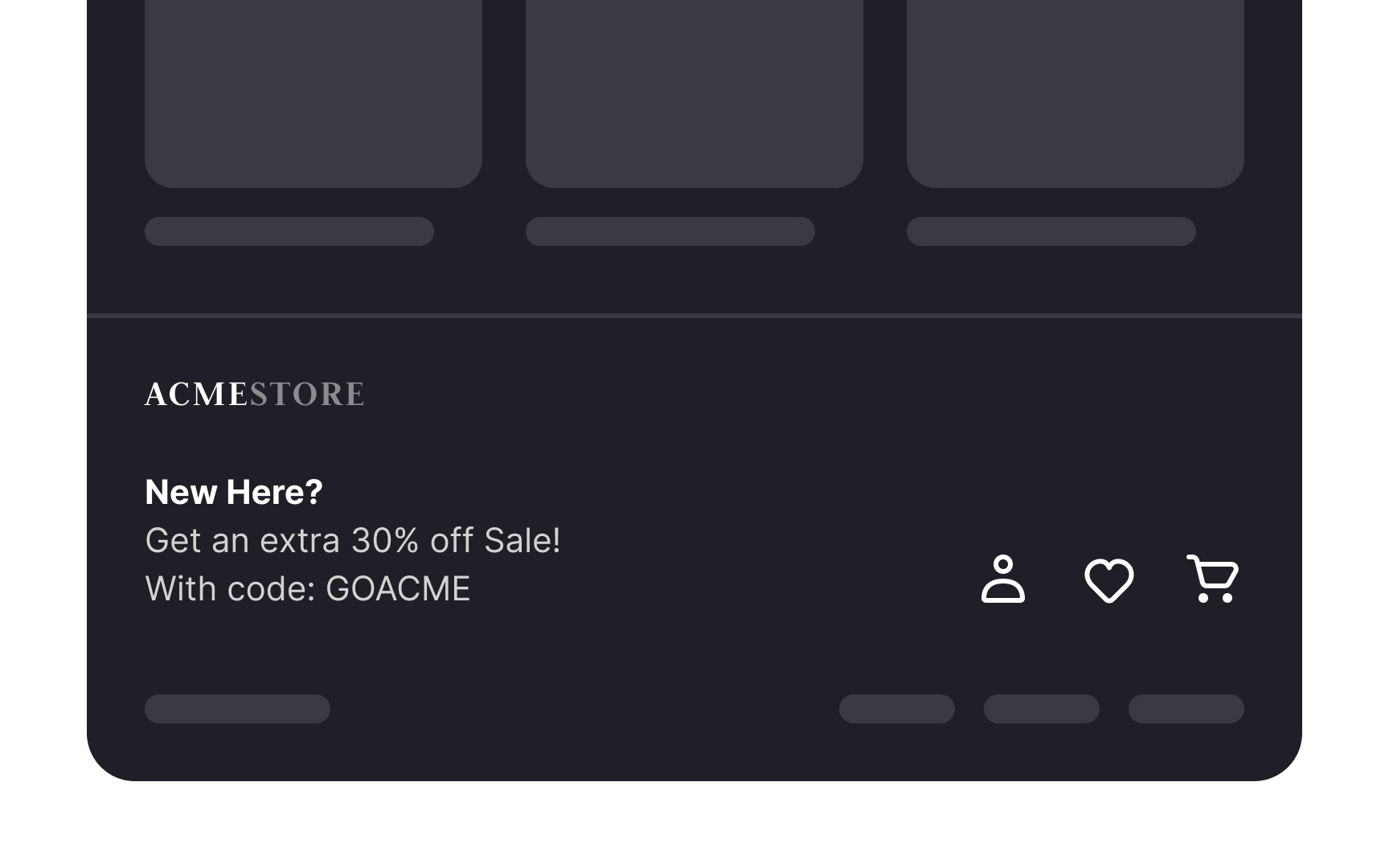
Footer navigation is the menu at the bottom of a webpage, usually represented by text links. It often includes supplementary information that doesn’t fit into the main menu, such as:
- Contact information including the company’s address, phone number, and email address
- A link to learn more about the company or website
- Privacy policy, terms of service, and other legal information for users
- A sitemap that shows the structure of the website
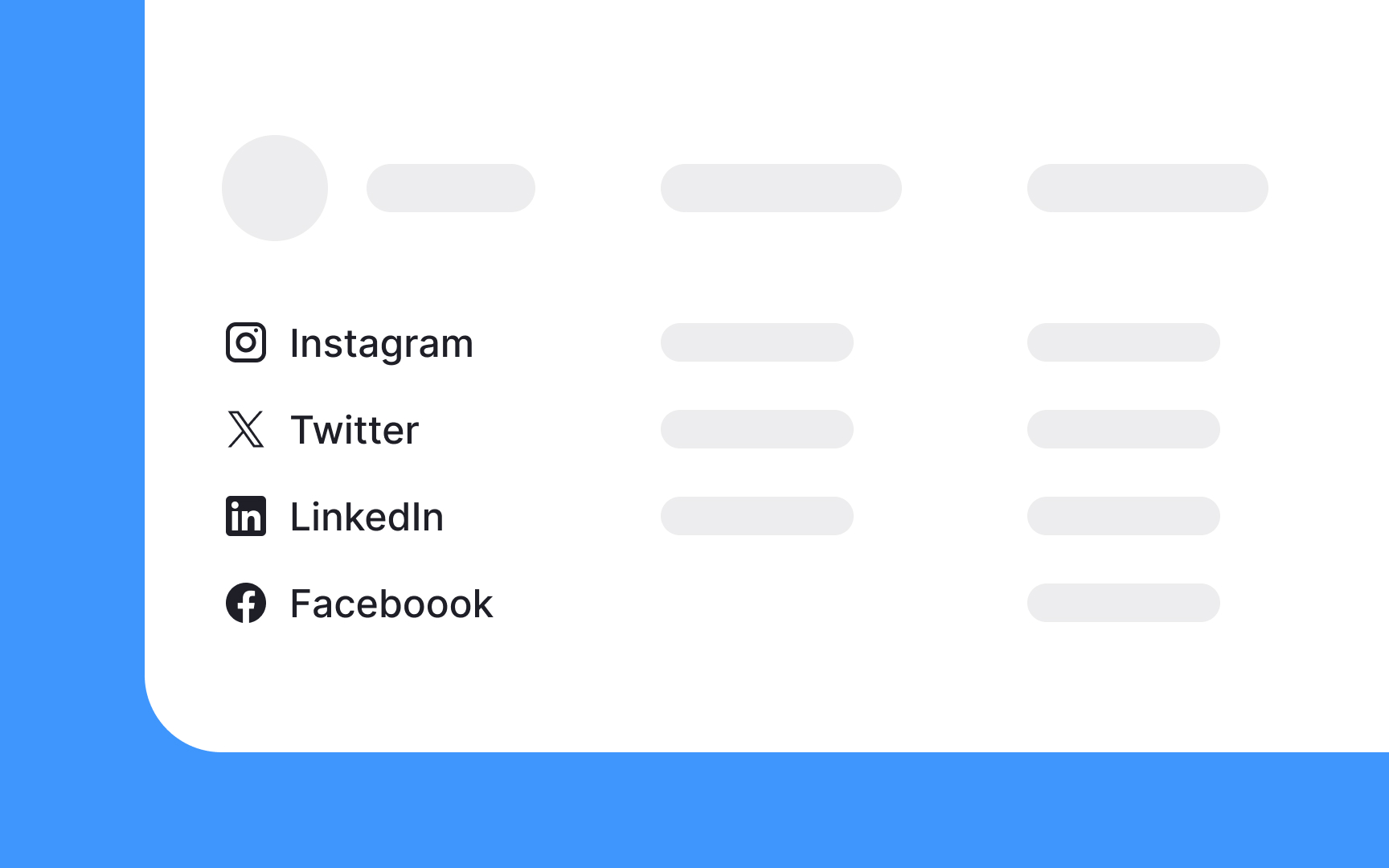
- Icons linking to the company’s social media pages
Footer navigation can also include related links and logical next steps to enhance the users’ ability to navigate the site efficiently. For example, a footer on an e-commerce website may include links to "Shipping Information," "Returns & Exchanges," or "Customer Support." On a blog, the footer could include "Read Next Post," or "More Articles on This Topic."
Do not include irrelevant links or information that doesn't serve users’ needs or the goals of the website in the footer navigation. For instance, it's unnecessary to include promotional content or duplicated site content.
Utility navigation
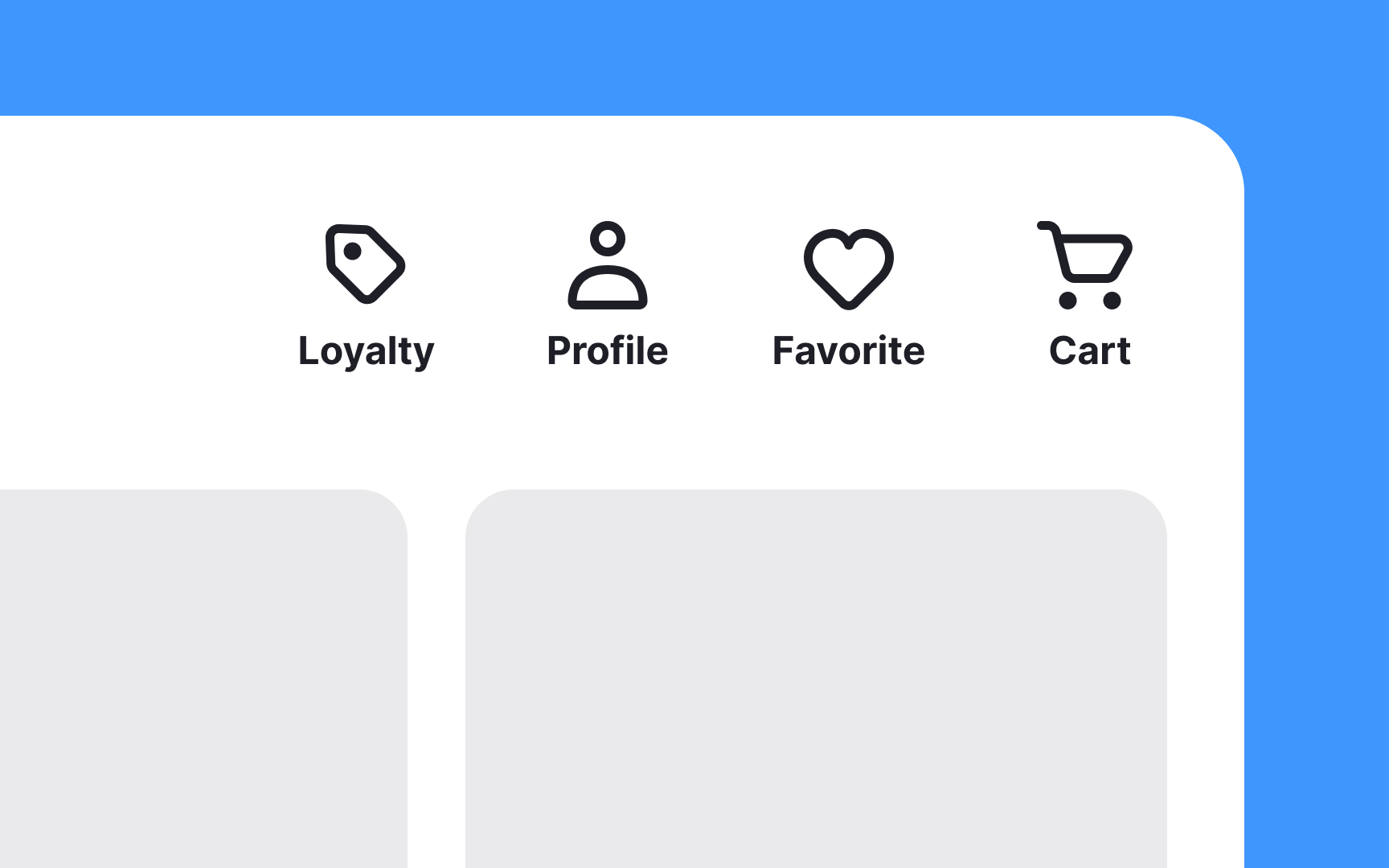
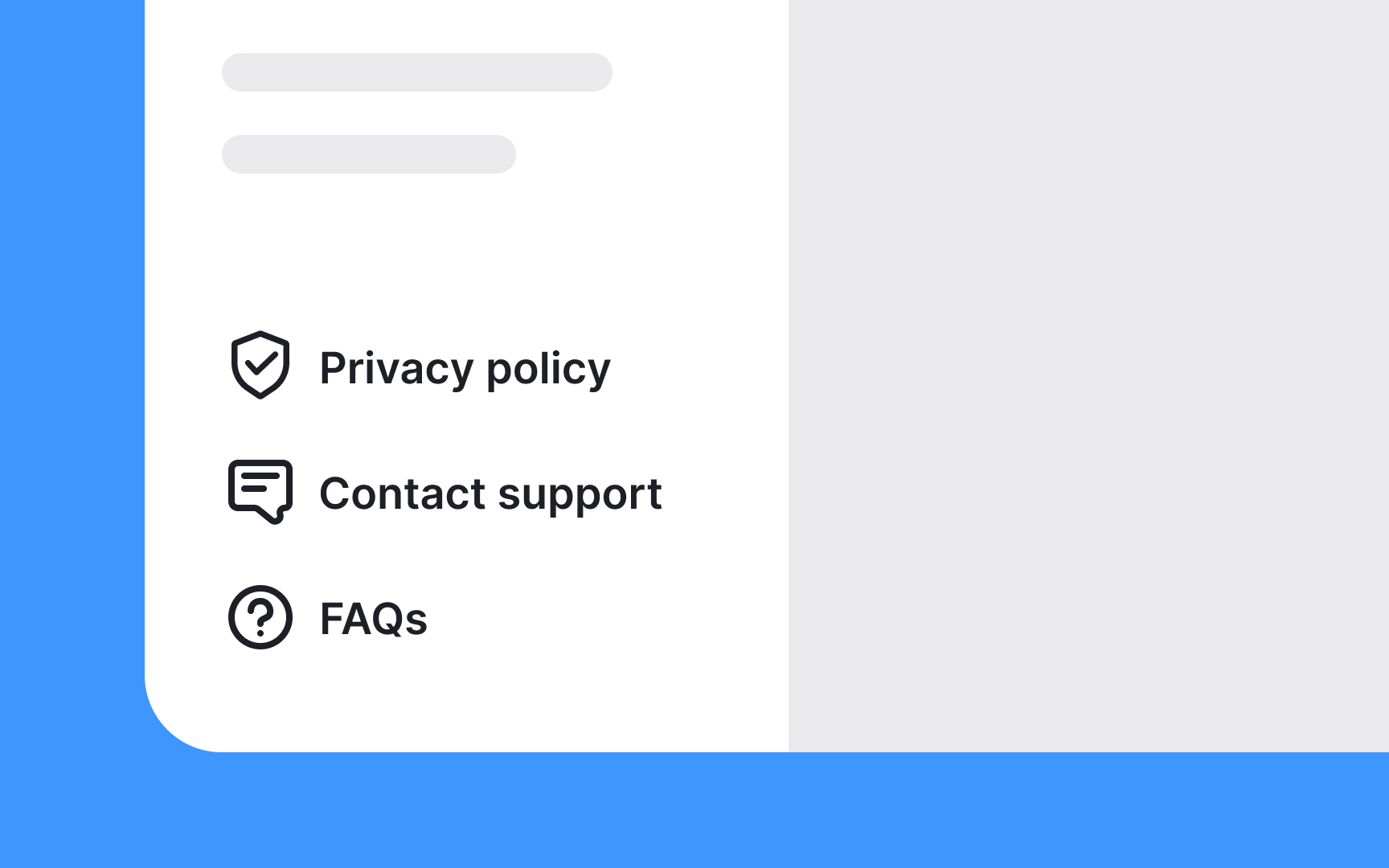
Utility navigation is a set of links that help users access essential tools or information on a website. These links are usually found at the top of a webpage. They include options like login, contact, follow, share, subscribe, and help. They can also include settings like language switchers, print, font size changers, and single-page view options. Unlike main navigation, which guides users to the main sections of the site, utility navigation focuses on user-specific needs. It ensures that users can easily find and use important functions, making their experience smoother and more efficient.
To decide what to include in utility navigation, consider these steps:
- Identify key functions. What actions do users need to perform most often, like logging in, searching, or accessing their profile?
- Include only the most critical tools to avoid clutter.
- Ensure the utility navigation is in the same place on all pages for easy access.
Internal page navigation
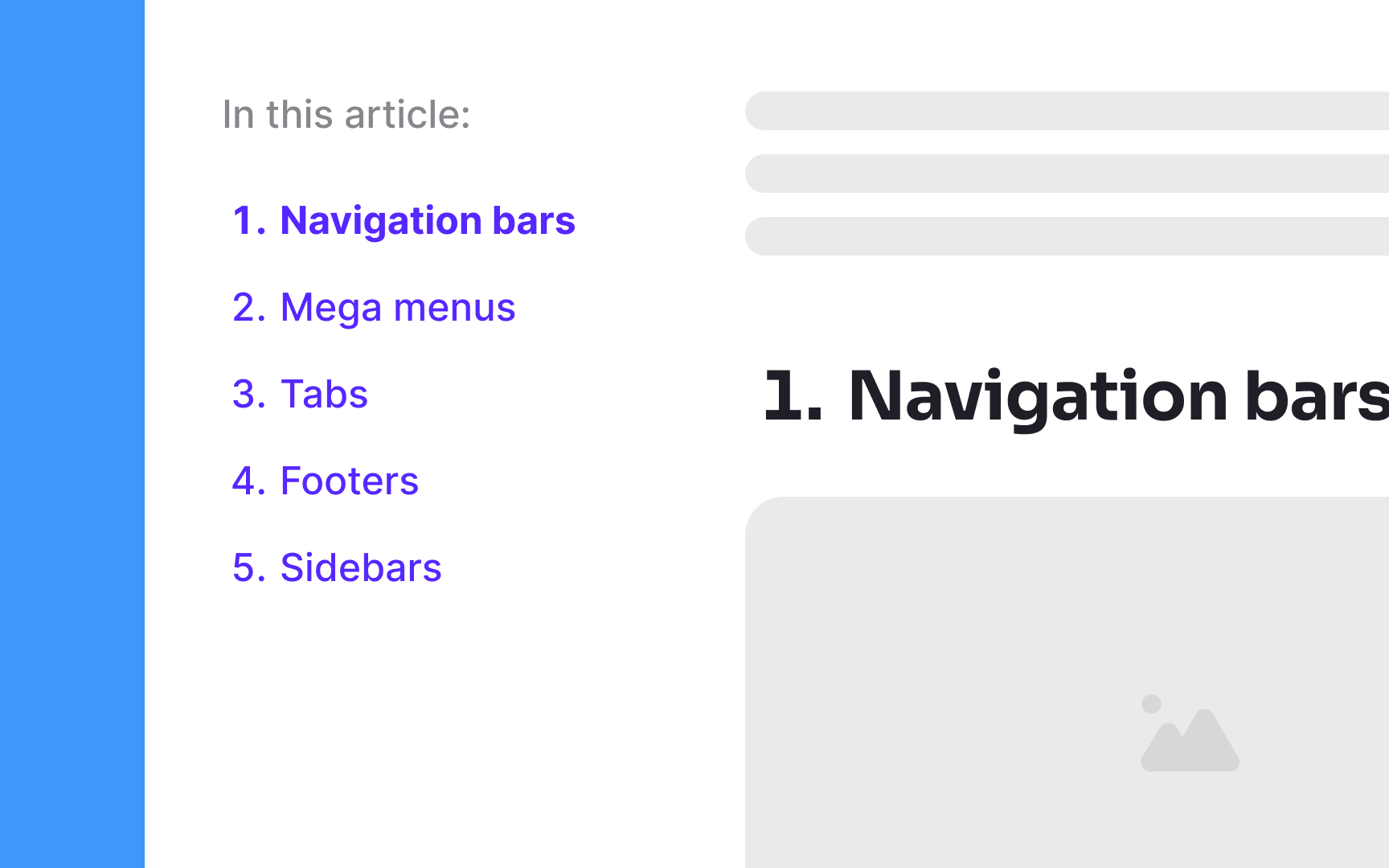
Internal navigation is a type of local navigation that helps users move quickly within a long webpage. These are links that let you jump from one section to another without scrolling. For example, if a page has different sections like "Introduction," "Features," and "Contact Us," internal navigation links can take you directly to each part. This is handy for saving time and getting straight to the information you need.
It is best used as a table of contents displayed at the top of a long webpage where it can provide an overview of the webpage's content and structure, giving users a clear idea of what information is available and where it is located.
However, internal navigation has its drawbacks. It uses valuable screen space and can confuse users expecting to be directed to a new page. Use it judiciously to avoid confusion and frustration for users.
Topics
References
- Designing Web Navigation | O’Reilly Online Learning
- Designing Web Navigation | O’Reilly Online Learning